How to Sync Website Form Submissions to Your CRM Automatically
 Zaid 9 min read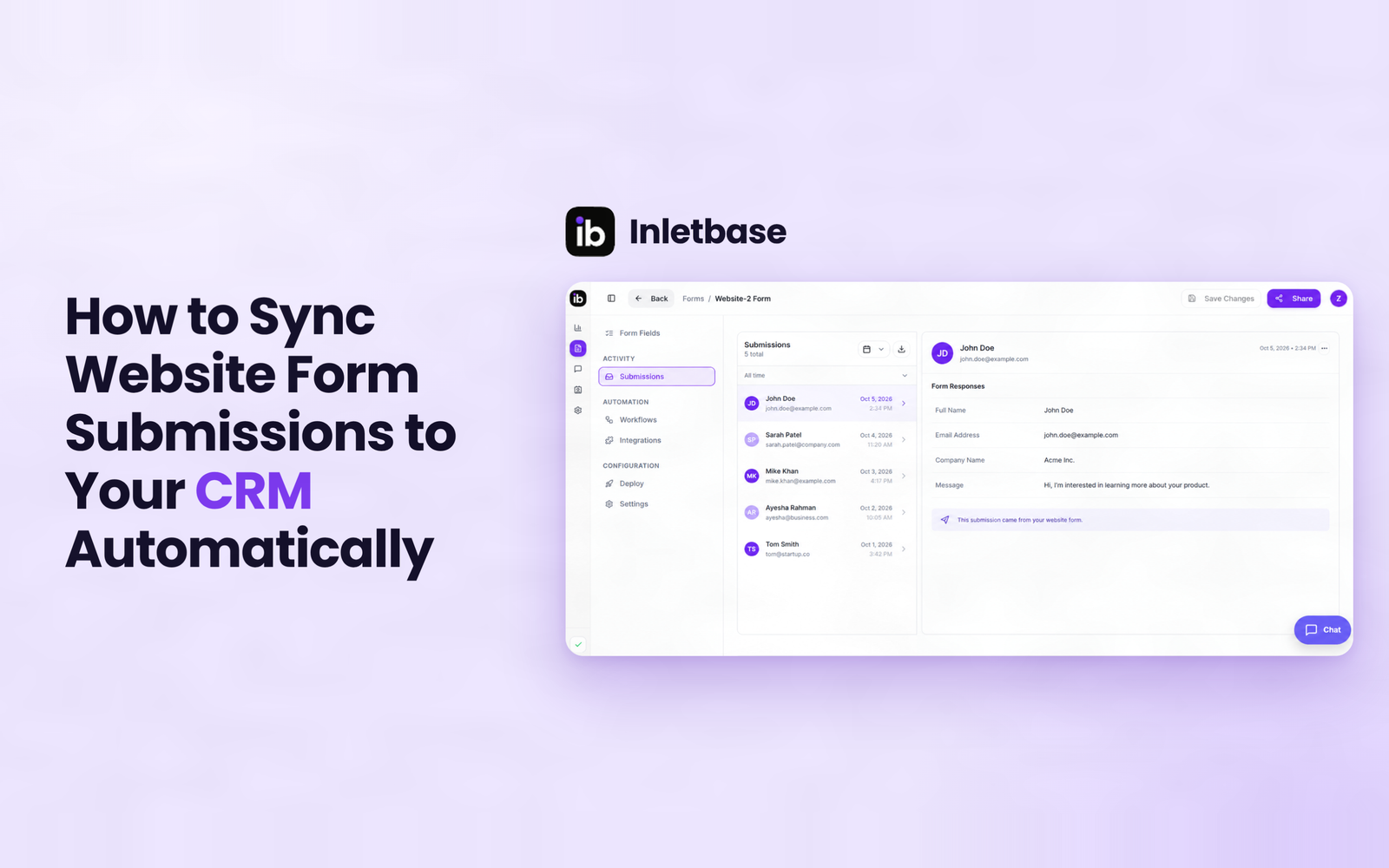
To sync website form submissions to your CRM automatically, send each submission to the CRM the moment it is submitted, using a native integration, a webhook, a connector tool or a CRM-hosted form. Map name, email, message, source and UTM fields, assign an owner on creation, match on email to avoid duplicates, and test every month.
Key takeaways
- An email notification is an alert, not a system. A CRM record gives every enquiry an owner, a status and a source.
- Pick the simplest method that works: native, then webhook, then connector tool. Each step down adds a place where things can break.
- Capture UTM and page data at the moment of submission. You cannot rebuild it later.
- Match on email so repeat submitters update one record instead of creating copies.
- Keep the email alert running. If the email arrives and the CRM record does not, the sync is broken.
Why does emailing form submissions stop working?
Because email has no owner, no status and no source. A form that only sends an email works until the person is away, two enquiries land during a meeting, or you ask which page produced the lead. Then it fails without any warning.
A CRM record fixes all three. It gets an owner when it is created, a status you can filter, and fields that record where the lead came from.
Keep the email alert as a backup. Just stop treating it as the system.
What are the four ways to sync a form to a CRM?
The four methods are a native integration, a webhook, a connector (middleware) tool, and a form hosted by the CRM itself. Choose the first one your tools support, because every extra hop is another thing that can fail unnoticed.
| Method | How it works | Setup effort | Best when | Watch out for |
|---|---|---|---|---|
| Native integration | Your form tool has a built-in CRM connector | Minutes | Both tools support it | Limited field mapping on some plugins |
| Webhook | The form posts a JSON payload to a URL that creates the lead | About an hour | You can paste a URL or write a little code | You must handle errors yourself |
| Connector tool (e.g. Zapier, Make) | A middle app watches the form and writes to the CRM | 30 to 60 minutes | No native option exists | Extra cost, task limits, silent failures |
| CRM-hosted form | The CRM provides the form you embed | Minutes | You can style it to match your site | Less design control |
Quick decision guide
- Does your form tool list your CRM as a built-in integration? Use it.
- If not, can the form send to a webhook URL? Use a webhook.
- If not, use a connector tool.
- If you are starting fresh and design matters less, embed the CRM’s own form.
Who each method is not for: a connector tool is a poor fit if you handle high volumes on a tight budget, since usage-based pricing can climb. A webhook is a poor fit if nobody on your team is comfortable debugging a failed request. A CRM-hosted form is a poor fit if your brand design is strict.
Which form fields should you map to your CRM?
Map at least name, email, message, source, UTM fields, owner and timestamp. Decide this before you build, because fixing the mapping later means re-entering old leads by hand.
| Form field | CRM field | Notes |
|---|---|---|
| First name, last name | Contact first and last name | Split at the form, not afterwards |
| Primary email | Also your match key for duplicates | |
| Phone | Phone | Ask only on high-intent forms (demo, quote) |
| Company | Company | Or derive from the email domain |
| Message | Note or activity | Not a custom field nobody reads |
| Page URL, form name | Lead source / source detail | The field teams forget most often |
| utm_source, utm_medium, utm_campaign, utm_term, utm_content | One CRM field each | Never one combined text blob |
| Consent checkbox | Consent field with date | Consent status and date/time |
| Owner | Lead owner | Set by a routing rule, never blank |
| Submitted at | Created timestamp | Needed to measure response time |
Keep the form short. Every field costs completions. Ask for the minimum the intent justifies and fill in the rest later.
| Form type | Ask for | Add afterwards |
|---|---|---|
| Newsletter | Everything else | |
| Content download | Name, email | Company from domain |
| Contact enquiry | Name, email, message | Company, size, industry |
| Demo or quote request | Name, email, company, phone | Size, industry, tools used |
How do you capture UTM and source data from a form?
Add hidden fields to the form, fill them with JavaScript when the page loads, and map each one to its own CRM field. This has to happen at submission time, because the campaign data is not available afterwards.
- Add hidden fields for
page_url,referrerand the five UTM parameters. - Fill them on page load from the query string and the referrer.
- Store first-touch values so a visitor who returns later keeps their original campaign.
- Map each hidden field to a separate CRM field.
- Add “How did you hear about us?” on high-intent forms only, to catch word of mouth that tracking misses.
Here is a minimal example. Treat it as a starting point and adapt it to your form builder and cookie policy:
html
<input type="hidden" name="page_url">
<input type="hidden" name="referrer">
<input type="hidden" name="utm_source">
<input type="hidden" name="utm_medium">
<input type="hidden" name="utm_campaign">
<input type="hidden" name="utm_term">
<input type="hidden" name="utm_content">

<script>
(function () {
  var keys = ["utm_source","utm_medium","utm_campaign","utm_term","utm_content"];
  var params = new URLSearchParams(window.location.search);
  var saved = {};
  try { saved = JSON.parse(localStorage.getItem("first_touch") || "{}"); } catch (e) {}
  keys.forEach(function (k) {
    if (params.get(k) && !saved[k]) saved[k] = params.get(k);
  });
  try { localStorage.setItem("first_touch", JSON.stringify(saved)); } catch (e) {}
  keys.forEach(function (k) {
    var el = document.querySelector('[name="' + k + '"]');
    if (el && saved[k]) el.value = saved[k];
  });
  var p = document.querySelector('[name="page_url"]');
  if (p) p.value = window.location.href;
  var r = document.querySelector('[name="referrer"]');
  if (r) r.value = document.referrer;
})();
</script>
Storing tracking values may need visitor consent in some regions. Check your local privacy requirements before storing tracking data.
What does a webhook sync actually look like?
A webhook sync is a single HTTP request: when someone submits the form, it sends a JSON payload to a URL, and the receiving system turns it into a CRM lead. Here is an illustrative payload (field names will differ by tool):
json
{
  "submission_id": "sub_000123",
  "submitted_at": "2026-10-05T21:47:12Z",
  "first_name": "Ana",
  "last_name": "O'Connor",
  "email": "ana@example.com",
  "phone": "+15551234567",
  "message": "Need a quote for a 3-page site.",
  "form_name": "Homepage contact form",
  "page_url": "https://example.com/pricing",
  "utm_source": "google",
  "utm_medium": "cpc",
  "utm_campaign": "spring-offer",
  "consent": true
}
The submission_id is worth including. It lets the receiver recognise a retry as the same submission instead of creating a second lead. Zapier’s public Webflow-to-CRM templates use the same pattern: they format the phone number and pass a submission ID so the CRM can dedupe.
Then check three things on the CRM side: it matches on email, it updates instead of creating a copy, and it assigns an owner.
How do you stop duplicates and silent failures?
Match on email, return a clear error when something fails, and compare the email alert against the CRM record. These three habits catch most problems before a lead goes missing.
- Duplicates: configure “match on email, then update”. Test by submitting the same address twice.
- Retries: if the CRM is down, make sure the sender retries or logs the failure, and that retries carry the same submission ID.
- Silent failure: keep the email notification on permanently. Email in the inbox with no CRM record means the sync is broken.
- After website changes: theme, plugin and form-builder updates can break a connection. Re-test after any of them.
How do you set this up, step by step?
- List your forms and what each one is for (newsletter, contact, demo, quote).
- Choose a method using the decision guide above.
- Define the field mapping from the table above before building anything.
- Add hidden fields for source and UTM data.
- Connect the form (native connector, webhook URL or connector tool).
- Set the rules: match on email, assign an owner, create a follow-up task.
- Keep the email alert and run the failure-case tests below.
Platform notes
- Webflow, Framer and similar builders: most let a form send to a webhook URL, which makes the webhook method the usual route when no native CRM connector exists.
- WordPress: many form plugins ship with a handful of CRM connectors. If yours does not cover your CRM, a webhook or a form-backend plugin is the next step.
Where does Inletbase fit in?
Inletbase is one way to do the “capture first, then route” step. It is a form backend and AI chatbot platform: forms on your site send submissions to Inletbase, which keeps them in one dashboard and can reply to the lead with AI.
- Framer: you build the form as usual, pick the matching Inletbase form in the plugin, copy its webhook URL and paste it into Framer’s Send To → Webhook. The plugin listing says submissions then flow to Inletbase, with emails, CRM and workflows included.
- WordPress: the plugin captures data from the form fields you map and sends it to the Inletbase API.
Who Inletbase is not for: if your form tool already has a reliable native connector to your CRM and you need nothing more, adding another layer is unnecessary. For a comparison of tools, see our roundup of the best AI tools for form submission.
If you run forms on more than one site, our guide to managing forms from multiple websites in one dashboard covers the setup. To get started, see the getting started docs or the WordPress and Framer guides.
How do you test a form-to-CRM sync properly?
Test the failure cases, not just the happy path. Most people submit one clean test, see a record, and stop. Real traffic is messier.
- Submit with a UTM-tagged URL. Confirm every parameter lands in its own field.
- Use an apostrophe and accented letters in the name. Names like O’Connor or José break poorly built mappings.
- Submit the same email twice. Confirm it updates, not duplicates.
- Submit from a phone. Hidden-field scripts sometimes fail on mobile browsers.
- Check the owner. An unassigned lead is the failure this whole setup exists to prevent.
- Leave an optional field empty. Confirm the record still saves.
- Re-test after any website change.
the 3-minute monthly check
Once a month, submit one test enquiry from a UTM-tagged link on your phone. In three minutes, confirm: (1) the email alert arrived, (2) a CRM record exists, (3) the source and UTM fields are filled, (4) an owner is set, (5) a follow-up task was created. Put it in the calendar.
Conclusion
A form should create an owned, sourced, time-stamped CRM record within seconds. Choose the simplest sync method, map the fields before you build, capture UTMs at submission, match on email, and keep the email alert as your alarm.
Next step: if you want your forms captured in one place first, try Inletbase free or check the pricing. To reply to those leads fast, read how small businesses can reply to leads instantly without hiring more staff.
Related reading
Frequently asked questions
How do I connect a website form to my CRM?
Use a native integration if your form tool and CRM both support one. If not, send the submission to a webhook URL, use a connector tool such as Zapier or Make, or replace the form with one hosted by your CRM. Choose the simplest option that works, then test it.
Why send form submissions to a CRM instead of email?
An emailed enquiry has no owner, no status and no source information. A CRM record is assigned an owner when it is created, carries a status you can filter, and stores where the enquiry came from, so nothing depends on someone remembering to reply.
How do I track which page or campaign produced a lead?
Add hidden fields to the form for page URL, referrer and the UTM parameters. Fill them with JavaScript when the page loads, store first-touch values for returning visitors, and map each hidden field to its own CRM field so you can report on them later.
How do I stop duplicate leads from form submissions?
Set the integration to match on email address and update the existing record instead of creating a new one. If you use a webhook, send a unique submission ID so retries are recognised. Test by submitting the same email twice and checking you get one record.
How many fields should a contact form have?
As few as the intent justifies. Use email only for a newsletter, name, email and message for a general enquiry, and add company and phone for a demo or quote request. Collect everything else after the lead exists, through enrichment or follow-up.
Should I keep email notifications after connecting a CRM?
Yes. Keep them running as a low-cost alarm. If the email arrives but no CRM record appears, the sync has broken. Without that comparison, a failed connection can run for weeks before anyone notices fewer leads.
Do I need a developer to sync forms to a CRM?
Not always. Native integrations and connector tools are usually point-and-click. A webhook is easier if you can paste a URL, and harder if you need custom code. A developer helps most with custom payloads, error handling and tracking scripts.
Is a webhook or Zapier better for syncing form submissions to a CRM?
A webhook is usually better if your form tool can send one, because it has no middle app, no task limits and one less thing to break. Zapier or Make is better when you have no native option, need to reshape data, or want to send one submission to several apps without writing code.
What happens if my CRM is down when someone submits a form?
It depends on the method. Some tools retry, and some drop the submission. Check how yours handles failures before you rely on it. Keep the email notification on as a backup, and include a unique submission ID so a retry is not saved as a second lead.
Can I sync Webflow, Framer or WordPress forms to a CRM?
Yes. Most of these builders can send a form to a webhook URL, which works with any CRM that accepts one. WordPress form plugins often include a few built-in CRM connectors. If yours doesn’t cover your CRM, use a webhook, a connector tool, or a form-backend plugin.
Related articles
What Is a Form Backend? And How It Works
A form backend is a hosted service that receives the data from your website’s form, stores it, checks it for spam, and sends it on to places like your email, your CRM, or Slack. It does the work a server would normally do, so your form works without you building or running one yourself. At […]
ZaidOct 2, 2026
AI Chatbot for Website: What It Is and How It Works
An AI chatbot for a website is a chat box placed on a site that reads a business’s own pages, prices, and documents, then answers visitor questions in real, natural language, at any hour, without a person needing to be online. In This Article What Is an AI Chatbot for a Website? An AI chatbot […]
ZaidSep 26, 2026
10 Best AI Chatbots for Websites in 2026
A chatbot on your website is not just a widget in the corner. It is the difference between a lead that gets captured and a visitor who leaves without a word. Someone lands on your site at 11 PM. They have one small question. There is no one at the desk to answer it. Do […]
ZaidSep 20, 2026Latest articles

9 Best AI Tools for Form Submission in 2026
A form submission is not the end of the customer journey. It is where the real work begins.When someone fills out a form on your website, what happens next? Does the lead sit in an inbox? Does someone manually copy the details into a CRM? Does a sales team member decide who to contact first? […]
 Lana LucinSep 14, 2026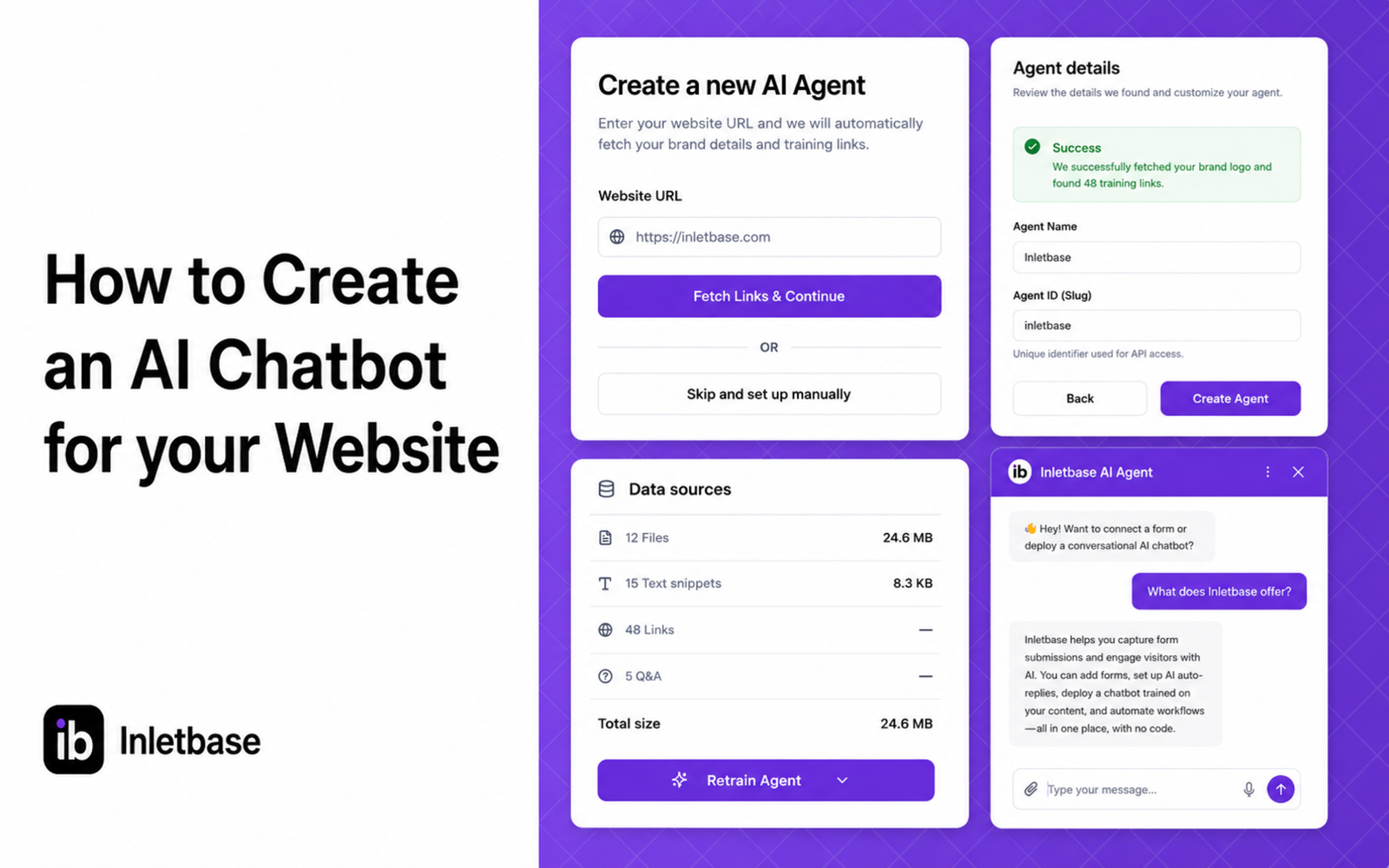
How to Create an AI Chatbot for your Website
At Inletbase, we build AI chatbots for business websites. We help people set these up every day, so this is written from what we actually see, not a guess. We keep this page updated as things change. You have seen chatbots on other websites. A little chat box in the corner that answers questions right […]
ZaidSep 2, 2026