Things to Consider Before Integrating a Chatbot With Your CRM
 Zaid 8 min read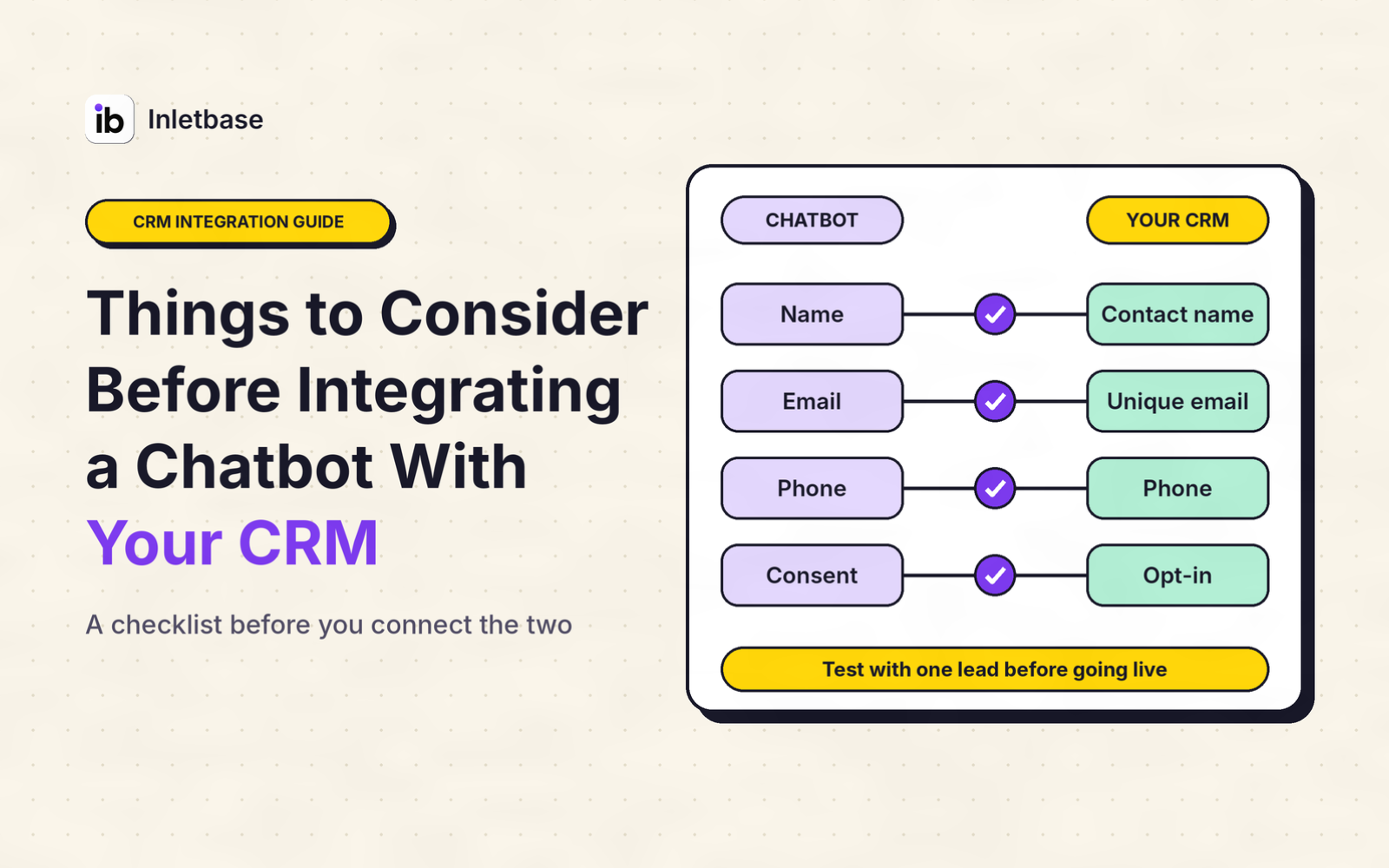
Before you integrate a chatbot with your CRM, decide what job it must do, clean your CRM data, choose whether data flows one way or both, pick the connection route, limit what the chatbot can see and change, handle privacy and consent, set rules for leads and duplicates, design the handoff to a person, test the failure cases, and agree who owns it afterward.
The checklist at a glance
- Define the one job the chatbot must do for your CRM
- Check your CRM data first
- Decide which way data flows
- Choose the connection route
- Set permissions
- Handle privacy and consent
- Write your lead rules
- Design the handoff to a person
- Test the awkward cases
- Plan cost and ownership
What does it mean to integrate a chatbot with a CRM?
It means the chatbot and the CRM share information automatically. At its simplest, the chatbot sends each new lead to the CRM as a contact. At its most advanced, the chatbot also reads from the CRM (for example, an order or plan) to answer personal questions, and writes the outcome back.
Most small teams only need the simple version first. The mistakes happen when a team jumps to the advanced version without the groundwork, which is what this checklist covers. If you are ready to build, see how to turn chatbot conversations into CRM leads.
1. Define the one job the chatbot must do for your CRM
Pick one outcome and write it in a sentence. “Send every qualified chat lead into the CRM with a source and an owner” is a job. “Improve customer experience” is not.
Common first jobs include:
- Capture leads from chat and create contacts.
- Qualify visitors before a salesperson sees them.
- Look up a customer’s order or plan to answer account questions (more advanced).
- Log conversation summaries so your team sees the history.
Starting with one job keeps the project small and the results measurable. Add a second job only after the first works.
2. Check your CRM data first
A chatbot can only be as accurate as the records it writes to and reads from. If the CRM already has duplicates, empty fields or inconsistent values, a chatbot will multiply the mess faster than a person could.
Before connecting anything:
- Remove obvious duplicates and decide which record wins.
- Standardize key fields such as lead source, country and status values.
- Confirm which fields exist for what the chatbot will send (name, email, phone, company, a note).
- Decide required fields. Most CRMs need an email to create a contact.
3. Decide which way data flows
There are two directions, and they carry very different risk.
| Direction | What it means | Risk | Good for |
|---|---|---|---|
| Chatbot → CRM (write) | The chatbot sends leads, summaries and tags into the CRM | Low if fields and duplicates are set | New leads, notes, source tracking |
| CRM → chatbot (read) | The chatbot looks up customer details to answer | Higher, because it touches private data | Order status, plan, account questions |
| Both | Read and write | Highest | A mature setup |
Treat it as a ladder. Start by writing leads one way. Add reading only when you have a clear use for it and the permissions in step 5 are set. Then allow the chatbot to edit existing records only for a few well-tested actions, ideally with a person approving at first.
4. Choose the connection route
You have four ways to connect, and the right one depends on your tools, your budget and who can maintain it.
| Route | How it works | Best when | Watch for |
|---|---|---|---|
| Native integration | The chatbot platform connects straight to your CRM | Your CRM is on its supported list | Limited field options |
| Webhook | The chatbot sends each lead to a web address your CRM or another tool accepts | No native connector exists | Authentication and data shape vary by CRM |
| Direct API | Your own code calls the CRM’s API | You need custom rules and have a developer | Code to build and maintain |
| Middleware (Zapier, Make) | A connector tool sits in between | Nothing else is available | Another tool, bill and failure point |
First answer one question about your CRM: does it have a usable API or a built-in connector? Modern CRMs usually do, and older or heavily customized systems may not, which changes both the route and the budget. For the full comparison, see how to sync website form submissions to your CRM.
5. Set permissions
The chatbot should be able to do only what it needs, and nothing more. This matters most when it reads from the CRM.
- Use a dedicated account for the integration, not an administrator login.
- Limit access to the minimum fields and objects the job needs.
- Never let the chatbot see one customer’s data in another customer’s conversation. If it reads personal details, tie each lookup to the person in that conversation.
- Keep a log of what the integration reads and writes, so you can check it later.
If you only send leads one way, permissions are simple: the integration needs permission to create or update contacts and nothing else.
6. Handle privacy and consent
A chat is a data collection point, so treat it like a form.
- Tell visitors what you will do with their details before you ask for them, and say it in plain language.
- Collect consent where your region requires it, and record that it was given, with the date, in a CRM field.
- Send only what you need. Skip fields you won’t use, and avoid sensitive details unless there is a clear reason.
- Decide how long you keep chat data, and who can see it.
- Check your vendors. Look for a data processing agreement with both the chatbot and the CRM provider.
Rules differ by region and use, so confirm the details with a legal adviser.
7. Write your lead rules
Decide in advance which conversations become CRM records, and what happens to each.
| Rule | Example | Result |
|---|---|---|
| Qualify | Valid email plus a stated need, such as pricing or a quote | Send to the CRM |
| Match | Same email as an existing contact | Update that contact, don’t create a new one |
| Tag the source | Fixed value such as “Website chatbot” | Reporting by channel |
| Assign an owner | A routing rule in the CRM | No unassigned leads |
| Skip | No email, or only a support question | Keep in the chat log, not the CRM |
Without these, the CRM fills with half-leads and duplicates, and the team stops trusting it
8. Design the handoff to a person
Decide what happens when the chatbot can’t help, before launch. The handoff should carry context: the conversation so far and any details the visitor already gave.
- Define when to hand off: a request for a person, a sensitive topic, or a question the chatbot can’t answer.
- Decide who receives it and how they are notified.
- Make sure the person sees the history, so the customer never has to repeat themselves.
- Test the after-hours path, so a handoff doesn’t disappear overnight.
A chatbot that fails gracefully earns more trust than one that tries to answer everything.
9. Test the awkward cases
Most problems that reach customers are integration problems, not bad answers: a timeout, a duplicate, a field that moved. Test them on purpose.
- A normal lead: confirm every field arrives.
- The same email twice: confirm one contact, updated.
- No email given: confirm no CRM record is created.
- A name with an apostrophe or accent: names like O’Connor or José break poorly built mappings.
- The CRM is unavailable: confirm what happens and that you are told.
- A field is renamed in the CRM: confirm you notice, not your customers.
- A handoff after hours: confirm someone is notified.
- A phone: confirm the chat works on mobile.
10. Plan cost and ownership
An integration is not finished when it goes live. Someone has to look after it.
- Check the pricing model. Some tools charge per team member, some per conversation or per resolution, and some lock integrations behind a higher plan. Ask for a quote based on your own volume.
- Count your own time, for cleaning data, setting rules and testing.
- Name an owner who checks the integration monthly and after any change to the chatbot or CRM.
- Pick two or three numbers to track, such as leads created, duplicates found and handoffs picked up.
Where does Inletbase fit in?
Inletbase is a form backend and AI chatbot platform. You train a chatbot on your own files, website pages, text snippets and question-and-answer pairs, and add it to your site with one embed script. Human handoff is included, so a visitor whose question needs a person can be passed to your team, and chatbot conversations and form submissions sit together in one dashboard.
On the CRM side, Inletbase has a native HubSpot sync that creates a contact for each new form submission, can update an existing contact instead of creating a duplicate, and lets you match fields yourself. It can also send data to any app through webhooks, and workflows let you add conditions so only the leads you choose reach your CRM. See the Integrations docs for the steps, and the pricing page for current limits. Integrations are available on the Pro plan and above, and you can start on the free plan with a form and one AI chatbot.
Pick it if you want a chatbot, forms and CRM connections in one place, with human handoff built in. To understand the bigger picture, read what is a customer conversations platform and AI chatbot for website: what it is and how it works.
Start small: the one-job rule
If you remember only one thing from this checklist, make it this: one job, one direction, one week. Pick one job, send data one way, and watch it for a week before you add anything. A small integration you trust beats an ambitious one you have to babysit.
Conclusion
Connecting a chatbot to your CRM works best when you plan it as a small, clear project: one job, clean data, one-way flow to start, limited permissions, consent handled, lead rules written, a real handoff and a test list. Score yourself on the checklist, fix the gaps, then build.
Next step: try Inletbase free or open the Integrations docs to see how the connection works.
Frequently asked questions
What should I do before integrating a chatbot with my CRM?
Define the one job the chatbot must do, clean your CRM data, decide whether data flows one way or both, choose a connection route, limit permissions, handle privacy and consent, write rules for leads and duplicates, design the handoff to a person, test the failure cases, and name an owner.
Does my CRM need an API to connect a chatbot?
Not always. Many CRMs have built-in connectors, and some accept webhooks or web forms. An API gives the most flexibility and is common in modern CRMs. If yours has none of these, you may need middleware or custom work, which changes the cost, so check this first.
What data should a chatbot send to a CRM?
Send name, email, phone if asked, company, what the visitor wanted, a short conversation summary, a fixed source such as “Website chatbot”, consent status and a timestamp. Include a unique conversation ID to catch duplicates. Leave out anything sensitive the visitor didn’t need to share.
Should a chatbot be allowed to edit CRM records?
Start with write-only for new leads, then add reading only for a clear use. Allow edits to existing records for a small set of well-tested actions, ideally with a person approving at first. Give the integration the minimum permissions and keep a log of what it changes.
How do I prevent duplicate contacts when a chatbot adds leads?
Match on email address and update the existing contact instead of creating a new one. Also send a unique conversation ID so retries are recognised. Test by chatting twice with the same email and checking that the CRM holds one contact with both conversations noted.
Is it safe to connect a chatbot to a CRM?
It can be, with care. Give the integration limited permissions, tell visitors how their details will be used, collect consent where required, send only what you need, and use vendors with a data processing agreement. Rules vary by region, so confirm with a legal adviser. This is not legal advice.
How long does it take to integrate a chatbot with a CRM?
It varies with the route. A built-in connector can take minutes to an afternoon, a webhook an hour or more, and a custom two-way build several weeks. Add time for cleaning data and testing, which is often the part that takes longest.
Can I integrate a chatbot with a CRM without a developer?
Often yes. Native integrations and connector tools are usually point-and-click, and a webhook needs only a web address and some careful field matching. You need a developer mainly for custom rules, two-way reads and writes, or a CRM without a built-in connector.
Related articles
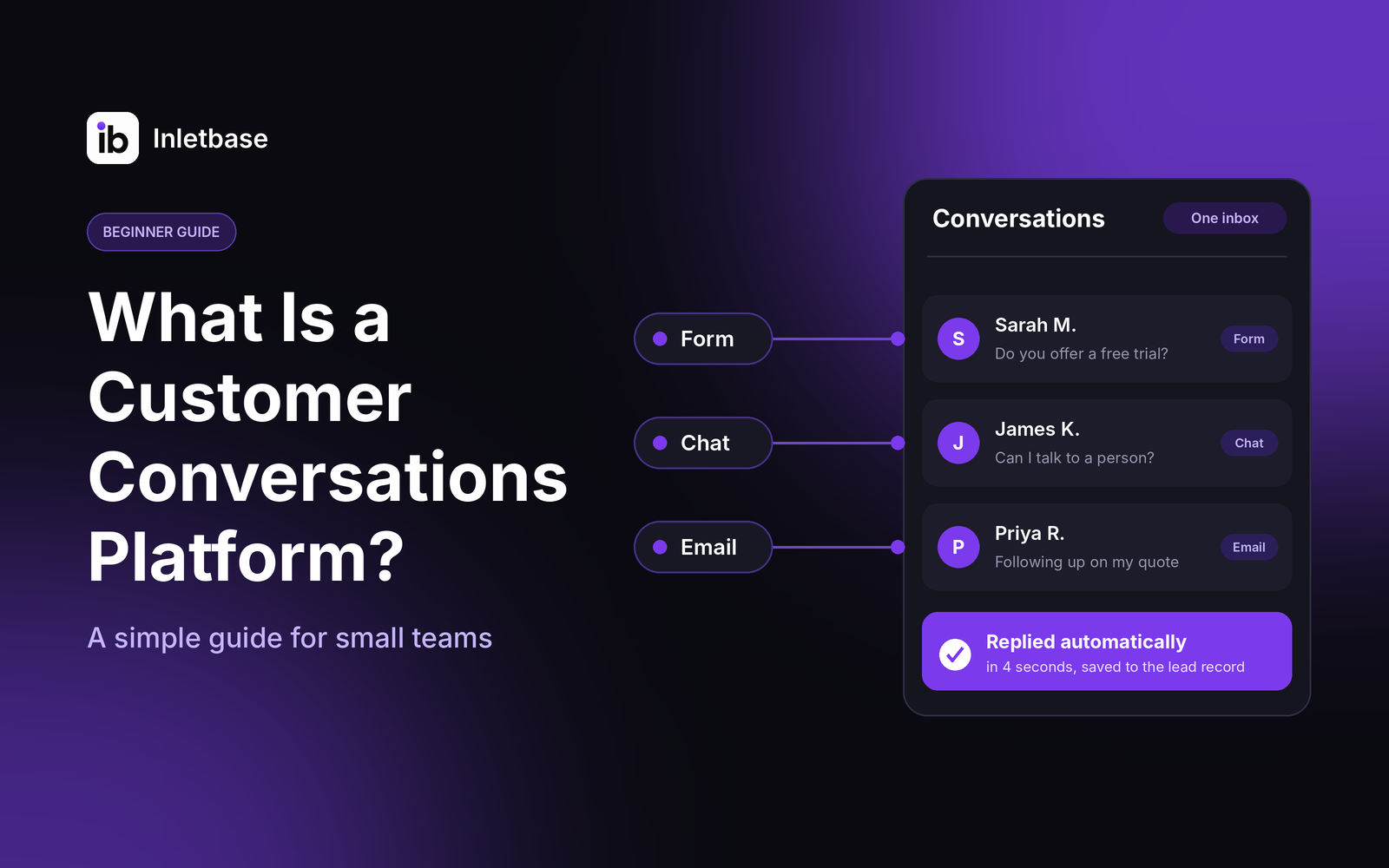
What Is a Customer Conversations Platform? A Simple Guide for Small Teams
A customer conversations platform is software that gathers every conversation with your customers, from website chat and forms to email and messages, into one place. Your team sees the full history, replies faster, and follows up without losing anything. For a small team, the right one is simple, affordable and connected to your CRM. Who […]
ZaidOct 28, 2026
How Do I Automatically Add New Leads to My CRM When Someone Fills Out a Form?
To add new leads to your CRM automatically, connect your form to the CRM so each submission creates a contact the moment it is sent. Use your form tool’s built-in CRM integration if it has one, a webhook if it doesn’t, or a connector tool like Zapier as a last resort. Map the fields, match […]
ZaidOct 24, 2026
AI Chatbot vs Rule-Based Chatbot: Which Is Best for Your Website?
A rule-based chatbot follows a fixed script of buttons and keywords, while an AI chatbot understands questions typed in a visitor’s own words and answers from your content. For most websites, an AI chatbot trained on your own content is the better choice. A rule-based bot wins only when every question is predictable and every […]
ZaidOct 21, 2026Latest articles
How to Build a Contact Form for a Next.js Website Without a Backend
You can build a Next.js contact form without writing a backend by sending the form to a hosted form endpoint. Use a Server Action to forward the data and keep your API key private, or post straight from a client component. The endpoint stores the submission and can notify you, so you need no API […]
ZaidOct 16, 2026
10 Best Customer Support Plugins for Framer in 2026
The best customer support plugin for Framer depends on what you need. Inletbase suits sites that want forms plus an AI chatbot with human handoff, Helploom suits live chat with a help center, BubblaV suits AI support with human handoff, and Human Reply or the Telegram Chat Button suit simple, human-only replies. All 10 are […]
ZaidOct 12, 2026