Changelog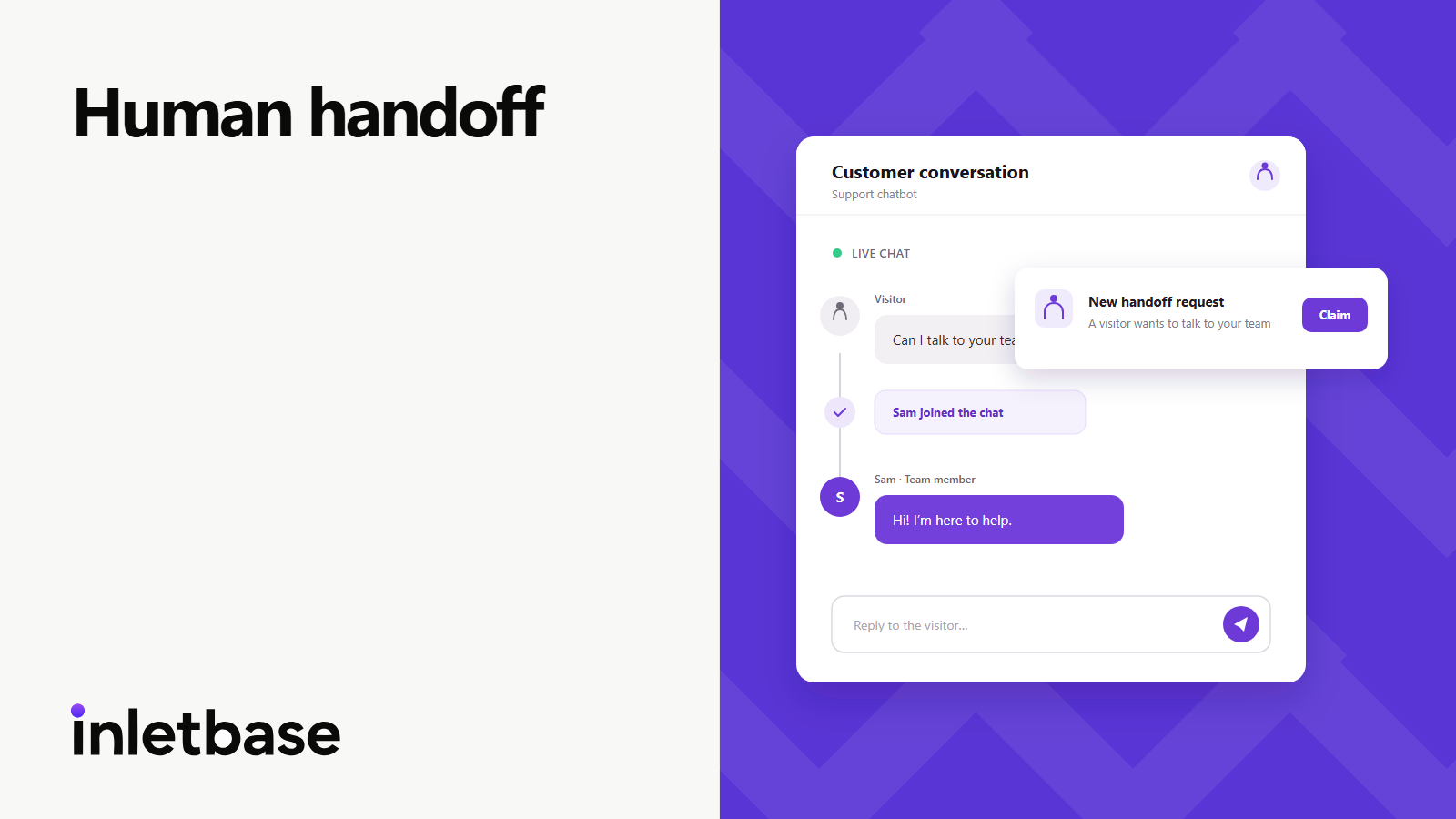
 Hanzala
HanzalaHuman handoff: your team can now join chats live
Some questions need a person. With human handoff, a visitor can ask to talk to your team right in the chat. Anyone on your team can then join, reply live from the dashboard, and hand the chat back to the AI when they’re done.
For your visitors
- Ask for a person at any time. “Talk to a person” is in the chat menu. When the AI can’t answer, or the visitor asks for a human, the AI offers it right below its reply.
- Always know what’s happening. A banner shows “Waiting for a team member…” and then who joined. Visitors can go back to the AI whenever they like.
- Leave a message when you’re away. Outside your working hours, or if nobody joins in time, visitors can leave their email and a message. You get it by email, and the visitor is saved as a contact.
For your team
- Get alerted right away. A headset icon in the dashboard header shows how many visitors are waiting. Each new request pops up, and the count shows in the browser tab. Emails go to the addresses in your chatbot’s Emails settings.
- Claim the chat and reply live. Open the conversation, click Claim and start typing. Your replies show up in the visitor’s chat within seconds.
- Take over any chat. You can step into an AI conversation even if the visitor didn’t ask. Only one person handles a chat at a time, and a teammate can take over from you after confirming.
- Hand it back or end it. Return the chat to the AI, or end it. The full transcript, including your team’s replies, stays in Conversations and in PDF and CSV exports.
Set it up in a minute
- Open your chatbot’s settings and go to the Human handoff tab.
- Turn on human handoff.
- Set your working hours and time zone, or choose to be always available.
- Choose how long visitors wait for someone to join, from 1 to 30 minutes (3 by default).
- Save.
You don’t need to change anything on your website. The chat widget updates by itself.
Human handoff is available on the Pro, Business and Enterprise plans. Messages handled by your team don’t use AI credits.
Also in this release
- A steadier chat widget. Visitors can’t send a second message while a reply is still coming in. A stalled reply now shows a message instead of loading forever. The same chat open in two tabs stays in sync.
- Fewer wasted AI credits. If a visitor closes the chat before the answer starts, no credit is used. An empty answer gives the credit back. If a visitor leaves mid-answer, the AI stops right away.
- Better screen reader support. The chat button says whether it opens or closes the chat. Team replies are read out even while the chat is closed.
- Security and reliability improvements across the chat, the dashboard and workspace data. Teammates removed from a workspace can no longer join or reply to its chats.
Frequently asked questions
Which plans include human handoff?
Pro, Business and Enterprise. On the Starter plan, the Human handoff tab shows an option to upgrade.
What happens if nobody on my team is available?
Outside your working hours, the chat offers "Leave a message" instead. During working hours, if nobody joins within the wait time you set, the AI keeps helping and the visitor can leave a message. Either way, you get the message by email, and replying goes straight to the visitor.
Do chats with my team use AI credits?
No. While a visitor is waiting for your team or chatting with them, their messages go to your team and no AI credits are used.
Who on my team can reply?
Any admin or member of your workspace. One person handles a chat at a time, and a teammate can take over after confirming.
Do I need to update the code on my website?
No. The widget loads from Inletbase, so visitors get the new version automatically. Visitors who already had your page open before the update need to reload it before your team can reply to them.
Can I join a chat the visitor didn't hand over?
Yes. Open any active AI conversation and click Take over. The visitor sees that a team member joined.