10 Best Customer Support Plugins for Framer in 2026
 Zaid 11 min read
The best customer support plugin for Framer depends on what you need. Inletbase suits sites that want forms plus an AI chatbot with human handoff, Helploom suits live chat with a help center, BubblaV suits AI support with human handoff, and Human Reply or the Telegram Chat Button suit simple, human-only replies. All 10 are compared below.
Key takeaways
- Framer has no built-in support tool. You add one from the Marketplace or with a code embed.
- Decide first whether you need AI answers, a human inbox, or both. Most of the choice follows from that.
- Install and test on the published site. Most widgets appear only after you publish.
- Use one tool. Two chat launchers confuse visitors.
- Check pricing and the listing’s last-updated date before you commit.
What do you need from a Framer customer support plugin?
You need a way for visitors to get an answer without leaving your site, and a place for you to see what they asked. Framer builds the site, but it does not answer visitors, so support comes from a plugin or an embed.
Start with three questions:
- Do visitors mostly ask repeat questions? An AI chatbot trained on your content handles those at any hour.
- Do you want to talk to people yourself? You need live chat and an inbox.
- Do you only need a way to be reached? A contact button may be enough.
How were these plugins chosen?
These 10 are Framer Marketplace plugins that add chat, an AI assistant, an inbox or a contact channel to a Framer site. Each was reviewed against the same six points, using its public listing and vendor page:
- What it does for support (AI answers, live chat, inbox, help center, lead capture)
- Install path inside Framer
- Human handoff or human reply
- Pricing as stated on the listing
- Who it suits
- What to watch out for
Where a listing does not state something, we say so rather than guess. Listings change, so check the current page before you install.
How do the 10 plugins compare?
| Plugin | Type | AI answers | Human handoff | Inbox or dashboard | Pricing on listing |
|---|---|---|---|---|---|
| Inletbase | Forms + AI chatbot | Yes | Yes | Dashboard for chats and submissions | Free account; see pricing |
| Chatloom | AI chatbot + live chat | Yes | Yes (take over from the AI) | Interaction monitoring | Not stated |
| Helploom | Live chat + help center | Optional | Live chat with your team | Shared team inbox | Free |
| BubblaV | AI chatbot + handoff | Yes | Yes | Live support dashboard | Free |
| Web2Chat | Live chat + ticketing | Yes | Yes | Shared inbox | Not stated |
| AskDolphin | Live chat + AI | Yes | Live chat and chat transfer | Shared support inbox | Not stated |
| Human Reply | Live chat via Telegram | Not stated | Human only | Telegram group | Paid |
| Pickaxe | AI chatbot | Yes | Not stated | Analytics, summaries | Not stated |
| AssistLoop | AI chatbot | Yes | Not stated | Not stated | Not stated |
| Telegram Chat Button | Contact button | No | Via Telegram (human only) | None | $9.99 one-time Pro |
“Not stated” means the Marketplace listing doesn’t say, not that the feature is missing.
1. Inletbase: forms plus an AI chatbot in one plugin
Best for: Framer sites that need a contact form backend and an AI chatbot with human handoff. Pricing: requires a free Inletbase account; see the pricing page for plan limits.
Inletbase’s Framer plugin connects your project to Inletbase in one click: you sign in, confirm a short code, and the accounts link. (You can also paste an API key.) For forms, you pick the matching Inletbase form in the plugin, copy its webhook URL, and paste it into Framer’s Send To → Webhook. For chat, you deploy a trained chatbot to the whole site in one click, and design and train it in the Inletbase dashboard.
Chatbot conversations and form submissions sit in one dashboard, and human handoff is included, so a visitor whose question needs a person can be passed to your team. For setup details, see our Framer guide. If you want to understand the chatbot side first, read AI chatbot for website: what it is and how it works.
Watch out for: it is built around forms and AI chat, so if all you want is a simple contact button, a lighter plugin such as the Telegram Chat Button is quicker to set up.
Pick it if you want forms, an AI chatbot trained on your own content, human handoff when a person is needed, and one place to see it all.
2. Chatloom: AI chatbot with live takeover
Best for: designers who want control over the widget’s look. Pricing: not stated on the listing.
Chatloom’s listing describes a chatbot trained on your own data (uploaded documents or a crawl of your site), with live support where you can take over from the AI, plus an in-chat form builder with custom fields. It lets you adjust colors, fonts and rounded corners inside Framer, and supports more than ten languages.
Watch out for: the listing does not state pricing, so confirm plan limits on the vendor’s site before you commit.
Pick it if brand fit and a hybrid AI-plus-human setup matter most.
3. Helploom: live chat, inbox and help center
Best for: small teams that want a help center next to live chat. Pricing: the listing says Free, and the vendor says a free plan needs no credit card.
Helploom offers a live chat widget, a shared team inbox, a help center and optional AI support that runs 24/7. The vendor says there are no per-agent or per-message fees. Setup is account first: create a Helploom account, add your Framer URL, install the plugin, and add your ID. The widget appears once you publish.
Watch out for: the AI layer is described as optional, so check how it answers before you rely on it. “Flat pricing” is the vendor’s claim, so read the plan page.
Pick it if you want to answer people yourself and give them a searchable help center.
4. BubblaV AI Chatbot: AI-first support with live handoff
Best for: sites that want an AI chatbot with a clear route to a person. Pricing: the Marketplace shows it as Free.
The listing says the chatbot handles repetitive questions around the clock, with one-click OAuth setup, a customizable widget and live handoff to your team. It learns from your website content and knowledge bases, and captures leads. The vendor’s site lists integrations such as Shopify, Stripe, Zendesk and HubSpot, and an omnichannel inbox.
Watch out for: the feature set is broad, which can be more than a small portfolio site needs. Treat the vendor’s resolution-rate claims as claims until you test.
Pick it if you want AI to take the routine questions and humans to take the hard ones.
5. Web2Chat: live chat with ticketing
Best for: teams that want chat, email and tickets in one inbox. Pricing: not stated on the listing.
Web2Chat describes a shared inbox that combines live chat and email, a customizable messenger with AI chatbots, bot-to-human handoff, support ticketing, and analytics such as response times, resolution rates and satisfaction scores.
Watch out for: the listing is older than most on this list, so check its last update and recent reviews first.
Pick it if you want a more traditional helpdesk feel for a Framer site.
6. AskDolphin: live chat and AI with visitor context
Best for: agencies and ecommerce brands that want to see who they’re talking to. Pricing: not stated on the listing.
AskDolphin adds an AI live chat widget and a shared inbox. The listing mentions chat search and history, chat transfer, internal notes, file uploads, live visitor details (viewed pages, device and location), multilingual conversations, voice input and transcripts sent to both your team and customers. It also includes smart QR codes for products and campaigns.
Watch out for: the QR-code and voice features are extras that many sites won’t use.
Pick it if you want rich context on each visitor in your support inbox.
7. Human Reply: live chat answered from Telegram
Best for: solo founders and small teams who prefer replying from a phone. Pricing: listed as Paid on the Marketplace.
Human Reply lets visitors chat in a bubble on your site. Each conversation opens as a topic in your team’s Telegram group with a lead card, and replies from Telegram appear live in the chat. The vendor stresses that a person always answers.
Watch out for: the vendor describes human replies, not AI answers, and it needs Telegram. It’s paid, so check the current plan.
Pick it if you want a real person replying fast, without a separate support app.
8. Pickaxe AI Chatbot: customizable assistants
Best for: sites that want an on-brand AI assistant that remembers returning visitors. Pricing: not stated on the listing.
Pickaxe offers no-code chatbots with custom colors, layouts and messaging, user memories for returning visitors, analytics, and conversation summaries with AI-driven insights. The listing pitches support, sales, learning and niche-expert uses.
Watch out for: it is positioned broadly, and the listing doesn’t describe human handoff.
Pick it if you want a branded assistant and conversation analytics more than a staffed inbox.
9. AssistLoop AI Chatbot: for agencies and small businesses
Best for: agencies that want a branded chatbot for client sites. Pricing: not stated on the listing.
AssistLoop describes an AI chatbot that answers questions and delivers support, aimed at small businesses, larger companies, agencies and developers. Agencies are offered a customized, branded chatbot for their clients.
Watch out for: the listing gives few specifics about features and pricing, so test the free trial or demo, if available, before committing.
Pick it if you manage several client sites and want one chatbot approach for all of them.
10. Telegram Chat Button: the simplest option
Best for: sites that only need a quick, low-cost way to be contacted. Pricing: configuration and preview are free, and a one-time Pro license of $9.99 unlocks installing and updating on your live site, according to the listing.
The plugin adds a customizable chat widget that opens a conversation with your team on Telegram. You can add several agents, each with a name, role, Telegram username, avatar and welcome message, and control color, size, shape, shadow and animations.
Watch out for: visitors are taken to Telegram, so it only works for people who use it. There is no AI and no shared inbox.
Pick it if you want a human contact channel set up in minutes.
Also worth a look: other contact-button plugins in the Marketplace, such as Smartarget’s WhatsApp Contact Us and iMessage & SMS chat support. For forms-only support requests, Tally has a free Framer plugin.
What about Intercom, Crisp and Tidio?
They are popular, but they are normally added to Framer through the Custom Code field in site settings rather than as a Marketplace plugin. We have not verified a current Marketplace listing for them, so they are not in the ten. If you already pay for one, using it can make sense. Otherwise a Marketplace plugin is faster to install and doesn’t require pasting a snippet.
How do you choose the right plugin?
| If you need… | Start with |
|---|---|
| Forms, an AI chatbot and Human Handoff in one place | Inletbase |
| A help center plus live chat | Helploom |
| AI answers with a route to a person | Inletbase or BubblaV |
| Traditional live chat with tickets | Web2Chat |
| Visitor context in the inbox | AskDolphin |
| Fast human replies from your phone | Human Reply |
| A branded AI assistant with memory | Pickaxe |
| Client-site chatbots as an agency | AssistLoop |
| The cheapest way to be reachable | Telegram Chat Button |
| Design control plus a hybrid AI/human setup | Chatloom |
How do you add a support plugin to Framer?
- Open your Framer project and open the Marketplace from the plugins menu.
- Search for the plugin and install it.
- Connect your account (most need a free account with the vendor).
- Configure the widget: colors, welcome message, languages, and the content it should learn from.
- Publish the site. Most widgets appear only on the published version.
- Test on the live URL, on desktop and phone.
- Check page speed with a tool like PageSpeed Insights, before and after.
What should you check before installing?
- Speed: a chat widget adds a script. Test the published page, and remove the widget if your scores drop.
- Privacy: confirm how the vendor stores chat data, what it needs for consent, and whether it offers a data processing agreement.
- Handoff: know what happens when the AI can’t answer, and who gets the message.
- One widget only: two launchers confuse visitors.
- The listing date: check when it was last updated and read recent reviews.
Original insight: the 5-minute publish test
After you install any plugin, publish and run this test on your live site:
- open it on your phone
- ask a question the site answers
- ask one it doesn’t
- leave your email
- confirm where the message arrived
If any step fails or surprises you, you have learned more than any feature list will tell you.
Conclusion
Framer gives you a polished site but no support tool, and the Marketplace now has more than enough options. Choose by the job: AI answers, a human inbox, or just a way to be reached. Install one plugin, publish, run the 5-minute test, and check speed and privacy before you rely on it.
Next step: if you want forms and an AI chatbot in one Framer plugin, try Inletbase free.
Frequently asked questions
What is the best customer support plugin for Framer?
Inletbase is one of the best Framer plugins for customer support. It combines a contact form backend and an AI chatbot trained on your own content, with human handoff and one dashboard to manage chats and form submissions.
Is there a free customer support plugin for Framer?
Yes. Helploom’s listing says Free, and the vendor says its free plan needs no credit card. BubblaV is listed as Free. Inletbase needs a free account. The Telegram Chat Button is free to configure, but installing it live needs a one-time $9.99 Pro license.
Do I need a plugin, or can I use custom code?
You can use either a Framer plugin or custom code. However, a plugin like Inletbase is easier to set up because it combines form handling and an AI chatbot with human handoff in one place. Custom code is another option if you prefer to add a support tool manually through Framer’s Custom Code settings.
Will a chat plugin slow down my Framer site?
Inletbase is designed to help you manage customer support without slowing down your website. However, we recommend testing your published Framer site with PageSpeed Insights after installation to check its performance.
Can I use more than one chat plugin on a Framer site?
You can, but you shouldn’t. Visitors see two launchers and don’t know which to use, and you end up checking two inboxes. Pick one plugin that covers what you need, and switch cleanly if you change your mind.
Should I choose an AI chatbot or live chat for Framer?
Choose an AI chatbot if you want to answer questions automatically, or live chat if you prefer to reply to visitors yourself. Inletbase combines both with an AI chatbot and human handoff, so your team can take over when a visitor needs personal support.
Can a Framer chatbot capture leads and send them to a CRM?
Some can. Check each plugin for lead capture and its integration options. Inletbase offers native sync with HubSpot for form submissions and webhooks to other tools. For the full setup, see our guides on syncing form submissions to your CRM and turning chatbot conversations into CRM leads.
How do I add a chatbot to my Framer site?
Open the Marketplace in your Framer project, install a chatbot plugin, connect your vendor account, set up the widget and what it should learn from, publish the site, and test on the live URL. Most plugins take only a few minutes. Custom-code tools need a pasted snippet instead.
Related articles
How to Turn Chatbot Conversations Into CRM Leads (Without Zapier)
To turn chatbot conversations into CRM leads without Zapier, have the chatbot send the lead directly to your CRM once a visitor shares their contact details. Use a native CRM sync, a webhook to your CRM’s own endpoint, the CRM’s API, or a chat tool built into the CRM. Send only qualified chats, match on […]
ZaidOct 10, 2026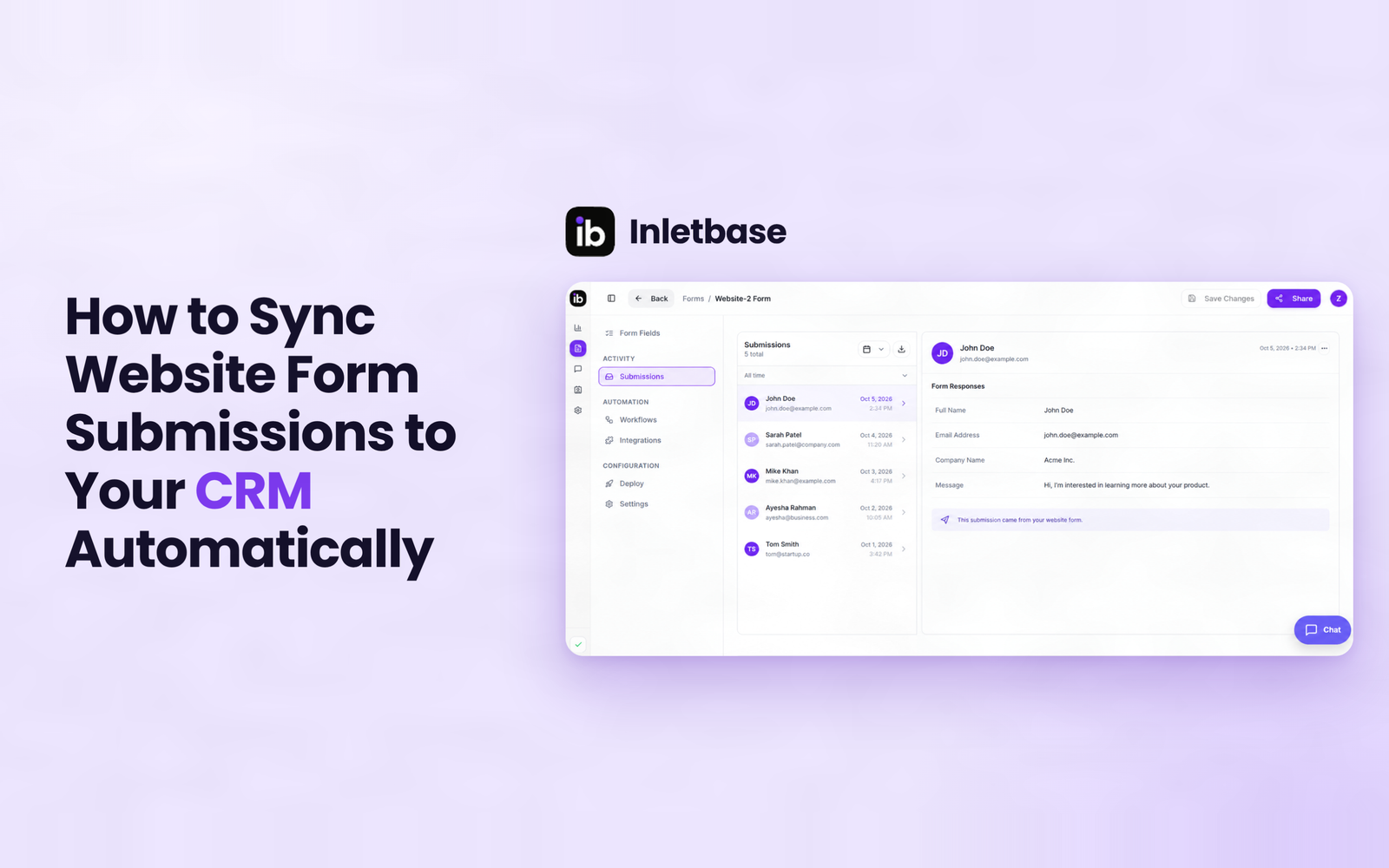
How to Sync Website Form Submissions to Your CRM Automatically
To sync website form submissions to your CRM automatically, send each submission to the CRM the moment it is submitted, using a native integration, a webhook, a connector tool or a CRM-hosted form. Map name, email, message, source and UTM fields, assign an owner on creation, match on email to avoid duplicates, and test every […]
ZaidOct 7, 2026
What Is a Form Backend? And How It Works
A form backend is a hosted service that receives the data from your website’s form, stores it, checks it for spam, and sends it on to places like your email, your CRM, or Slack. It does the work a server would normally do, so your form works without you building or running one yourself. At […]
ZaidOct 2, 2026Latest articles
AI Chatbot for Website: What It Is and How It Works
An AI chatbot for a website is a chat box placed on a site that reads a business’s own pages, prices, and documents, then answers visitor questions in real, natural language, at any hour, without a person needing to be online. In This Article What Is an AI Chatbot for a Website? An AI chatbot […]
ZaidSep 26, 2026
10 Best AI Chatbots for Websites in 2026
A chatbot on your website is not just a widget in the corner. It is the difference between a lead that gets captured and a visitor who leaves without a word. Someone lands on your site at 11 PM. They have one small question. There is no one at the desk to answer it. Do […]
ZaidSep 20, 2026