How Do I Automatically Add New Leads to My CRM When Someone Fills Out a Form?
 Zaid 8 min read
To add new leads to your CRM automatically, connect your form to the CRM so each submission creates a contact the moment it is sent. Use your form tool’s built-in CRM integration if it has one, a webhook if it doesn’t, or a connector tool like Zapier as a last resort. Map the fields, match on email to avoid duplicates, and test it.
At a glance
| Time | About 15 minutes |
| Skill | Beginner, no code needed for the main routes |
| You need | A form, a CRM account that lets you create contacts, and a short list of fields to send |
| You get | A CRM contact for every submission, with no copying and pasting |
Why do form leads get stuck before they reach your CRM?
Because a form usually sends an email, and an email is not a record. Someone has to notice it, copy the details into the CRM, and remember to follow up. When that person is busy, the lead waits, and details get mistyped or lost.
Automating the handoff fixes three things at once: leads arrive while the person is still interested, nobody retypes anything, and no submission disappears into an inbox. For a deeper look at the four ways to connect a form to a CRM, see how to sync website form submissions to your CRM.
What do you need before you start?
- A working form on your site (any builder: WordPress, Webflow, Framer, or custom).
- A CRM account where you have permission to create contacts.
- A field list: what the CRM needs for each lead (at minimum name and email).
- A decision on ownership: who should get new leads, so none sits unassigned.
- A plan that allows it. Some tools lock integrations behind a paid plan. Check yours before you begin.
Which route should you use?
There are three routes. Pick the first one your tools support, because every extra tool is another place for a lead to go missing.
| Route | How it works | Best when | Effort |
|---|---|---|---|
| Built-in integration | Your form tool connects straight to your CRM | Your tools list each other | Minutes |
| Webhook | The form sends each submission to a web address your CRM or another app accepts | There is no built-in integration | About an hour |
| Connector tool (Zapier, Make) | A middle app watches the form and writes to the CRM | Nothing else is available | 15 to 30 minutes |
How do you add form leads to your CRM, step by step?
Step 1: Decide what a lead record needs
Write down the fields before you connect anything. A CRM contact needs at least a name and an email. Then add whatever your team uses to follow up.
| Form field | CRM field | Why it matters |
|---|---|---|
| Name | First and last name | Personal follow-up |
| Required by most CRMs, and the key for spotting duplicates | ||
| Phone | Phone | Only if your team calls |
| Company | Company | For B2B qualification |
| Message | Note | Context for the first reply |
| Lead source (fixed value, such as “Website form”) | Lead source | Lets you report on where leads come from |
| Owner | Lead owner | Prevents leads from sitting unassigned |
Keep the form short. Every extra field lowers the chance that someone finishes it.
Step 2: Connect the form to the CRM
Use whichever route fits. Here are all three.
Route A: built-in integration (worked example with Inletbase and HubSpot). In Inletbase, open your form from the dashboard and click the Integrations tab. Then:
- Connect HubSpot: click the HubSpot card and sign in with your HubSpot account. Once connected, it is available on all your forms.
- Add a Create Contact action: this is the step that creates the contact in HubSpot.
- Match your fields: for each pair, pick a HubSpot field on one side and the form field that fills it on the other. Add as many pairs as you need. The email pair is required, because HubSpot uses the email to find the right person.
- Click Save.
For the full reference, see the Integrations docs.
Route B: webhook. A webhook sends each submission to a web address you choose, so another app can pick it up. In Inletbase, open the same Integrations tab, add a webhook, and paste the address that should receive the data. An Active switch lets you turn it on or off without deleting it. Each time the form is submitted, Inletbase sends the form, the fields the person filled in and when it happened. You can add more than one webhook, so one submission can reach several tools. The API reference shows the exact data sent.
Route C: connector tool. In Zapier or Make, create a new automation with your form tool as the trigger (“new submission”), choose your CRM as the action (“create contact” or “create lead”), connect your account, and map the fields. Check the connector’s current plan limits, because multi-step automations and higher volumes can need a paid plan. If your form tool can send a webhook, you can also point it at a connector tool as a catch-all.
Step 3: Map the fields
Match each form field to its CRM field using the table in Step 1. Three rules save the most trouble:
- Always map email. Most CRMs need it to create a contact.
- Add fixed values such as lead source (“Website form”) on every record.
- Map the message to a note, not to a field nobody reads.
Step 4: Set duplicates, ownership and filters
Decide what happens when the same person submits twice, and who gets the lead.
- Duplicates: in Inletbase, turn on the update existing option. If a contact with that email already exists in HubSpot, it updates their details instead of creating a duplicate.
- Ownership: set a rule in your CRM that assigns new contacts to a person or team.
- Only the right leads: the Integrations tab runs its actions on every submission. If you want them to run only in certain cases, such as adding only high-value leads to HubSpot, use HubSpot and Webhook as steps inside a workflow and put a condition in front of them.
Step 5: Test it, then turn it on
Submit the form yourself and check the CRM. Then test a few awkward cases before you rely on it:
- A normal submission: confirm the contact appears with every field filled.
- The same email twice: confirm you get one contact, updated, not two.
- A name with an apostrophe or accent: names like O’Connor or José can break poorly built mappings.
- An empty optional field: confirm the contact still saves.
- From a phone: confirm it works on mobile.
- Check the owner: confirm the new contact is assigned.
If something is missing, check the activity log in your tools first. Inletbase logs every form submission and CRM sync in one dashboard, so you can see what ran.
What happens after the lead lands in your CRM?
A contact in the CRM is only half the job. The next thing that matters is how fast someone replies. You can send an automatic reply the moment a form is submitted with AI auto-replies, and keep your own follow-up for the leads that matter most. For the full approach, read how small businesses can reply to leads instantly.
What commonly goes wrong?
| Symptom | Likely cause | Fix |
|---|---|---|
| No contact appears in the CRM | The integration was never saved, or your plan doesn’t include it | Re-open the Integrations tab, click Save, and check your plan |
| Contact created without an email | The email field wasn’t mapped | Map the email pair and test again |
| Duplicate contacts | “Update existing” is off, or you matched on the wrong field | Turn on update existing and match on email |
| Some fields are blank | Field names or mappings don’t match | Re-check each mapped pair |
| Webhook receives nothing | The Active switch is off, or the address is wrong | Turn it on and recheck the address |
| Every submission is added, including spam or low-value ones | The action runs on all submissions | Move it into a workflow with a condition |
| Leads arrive but nobody follows up | No owner assigned | Add an ownership rule in the CRM |
For more fixes, see the Troubleshooting & FAQ.
Try this today: the 60-second lead audit
Open your form’s submissions and your CRM’s contacts, and compare the last ten of each. If the numbers differ, or you find contacts you can’t match to a submission, you have a gap. Fix the integration first, then add automatic replies.
Where does Inletbase fit in?
Inletbase is a form backend and AI chatbot platform. It collects submissions from forms on any site, and its Integrations tab connects each form to your tools with a few clicks and no code. It adds each new submission to HubSpot as a contact, can update existing contacts instead of creating duplicates, and can send the details to any app that accepts a web request, such as Zapier, Make, Slack or your own system. With workflows, you can add conditions, so only the leads you choose reach your CRM.
Every submission, AI reply and CRM sync is logged in one dashboard, and you can start on the free plan, which includes a form, an AI chatbot and AI replies. Integrations are available on the Pro plan and above; see the pricing page. To understand the foundation, read what is a form backend. If you also take leads through chat, see how to turn chatbot conversations into CRM leads.
Conclusion
To add form leads to your CRM automatically, connect the form with a built-in integration, a webhook or a connector tool, map name and email at minimum, set duplicates and ownership, and test the awkward cases before you rely on it. Then compare your last ten submissions with your last ten contacts to confirm nothing is missing.
Next step: try Inletbase free, or open the Integrations docs to see the setup.
Frequently asked questions
How do I automatically add form leads to my CRM?
Connect your form to your CRM so every submission creates a contact the moment it is sent. Use a built-in integration if your form tool offers one, a webhook if it doesn’t, or a connector tool like Zapier. Then map the fields, match on email, and test it.
Do I need Zapier to send form submissions to my CRM?
No. Many form tools connect to a CRM directly, and a webhook can send submissions to any app that accepts a web request. Zapier or Make is useful when neither option is available, but it adds another tool, and possibly another bill, between your form and CRM.
Which CRMs can a form send leads to automatically?
Any CRM that has a built-in integration with your form tool, accepts a webhook, or is supported by a connector like Zapier. In Inletbase, HubSpot is built in, and other CRMs connect through a webhook. Check your CRM’s documentation for its intake or API options.
How do I stop duplicate leads when someone submits twice?
Match on email address and update the existing contact instead of creating a new one. In Inletbase, turn on the update existing option for the HubSpot action. Test it by submitting the same email twice and checking that the CRM holds a single contact.
Can I add only some leads to my CRM?
Yes. Put a condition in front of the CRM step, so only submissions that meet your rules, such as a high budget or a certain service, create a contact. In Inletbase, use HubSpot and Webhook as steps inside a workflow, with the condition placed before them.
What fields should I send from a form to a CRM?
At minimum send name and email. Add phone if your team calls, company for business leads, the message as a note, a fixed lead source such as “Website form”, and an owner. Keep the form short, since every extra field lowers completion rates.
Why aren't my form leads showing up in my CRM?
Common causes are an unsaved or locked integration, an unmapped email field, a webhook that is switched off or pointing at the wrong address, or a plan that doesn’t include the feature. Check your tool’s activity log first, then re-test with a simple submission.
Is it GDPR-compliant to send form data to a CRM?
It can be, if you tell people how their details will be used, collect consent where it is required, send only what you need, and have a data processing agreement with each vendor. Rules vary by region, so confirm with a legal adviser. This is not legal advice.
Related articles

AI Chatbot vs Rule-Based Chatbot: Which Is Best for Your Website?
A rule-based chatbot follows a fixed script of buttons and keywords, while an AI chatbot understands questions typed in a visitor’s own words and answers from your content. For most websites, an AI chatbot trained on your own content is the better choice. A rule-based bot wins only when every question is predictable and every […]
ZaidOct 21, 2026
How to Build a Contact Form for a Next.js Website Without a Backend
You can build a Next.js contact form without writing a backend by sending the form to a hosted form endpoint. Use a Server Action to forward the data and keep your API key private, or post straight from a client component. The endpoint stores the submission and can notify you, so you need no API […]
ZaidOct 16, 2026
10 Best Customer Support Plugins for Framer in 2026
The best customer support plugin for Framer depends on what you need. Inletbase suits sites that want forms plus an AI chatbot with human handoff, Helploom suits live chat with a help center, BubblaV suits AI support with human handoff, and Human Reply or the Telegram Chat Button suit simple, human-only replies. All 10 are […]
ZaidOct 12, 2026Latest articles
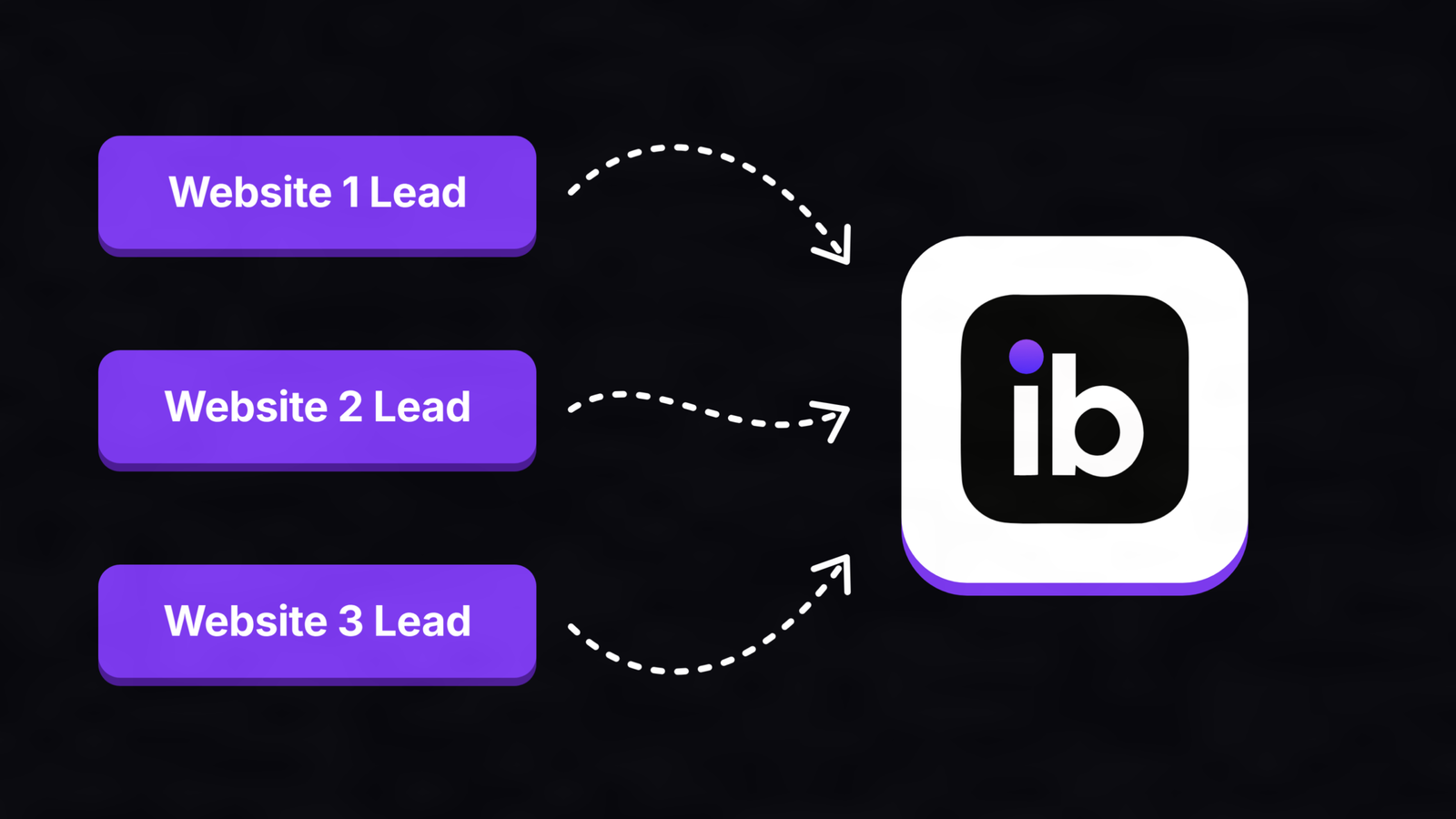
How to Turn Chatbot Conversations Into CRM Leads (Without Zapier)
To turn chatbot conversations into CRM leads without Zapier, have the chatbot send the lead directly to your CRM once a visitor shares their contact details. Use a native CRM sync, a webhook to your CRM’s own endpoint, the CRM’s API, or a chat tool built into the CRM. Send only qualified chats, match on […]
ZaidOct 10, 2026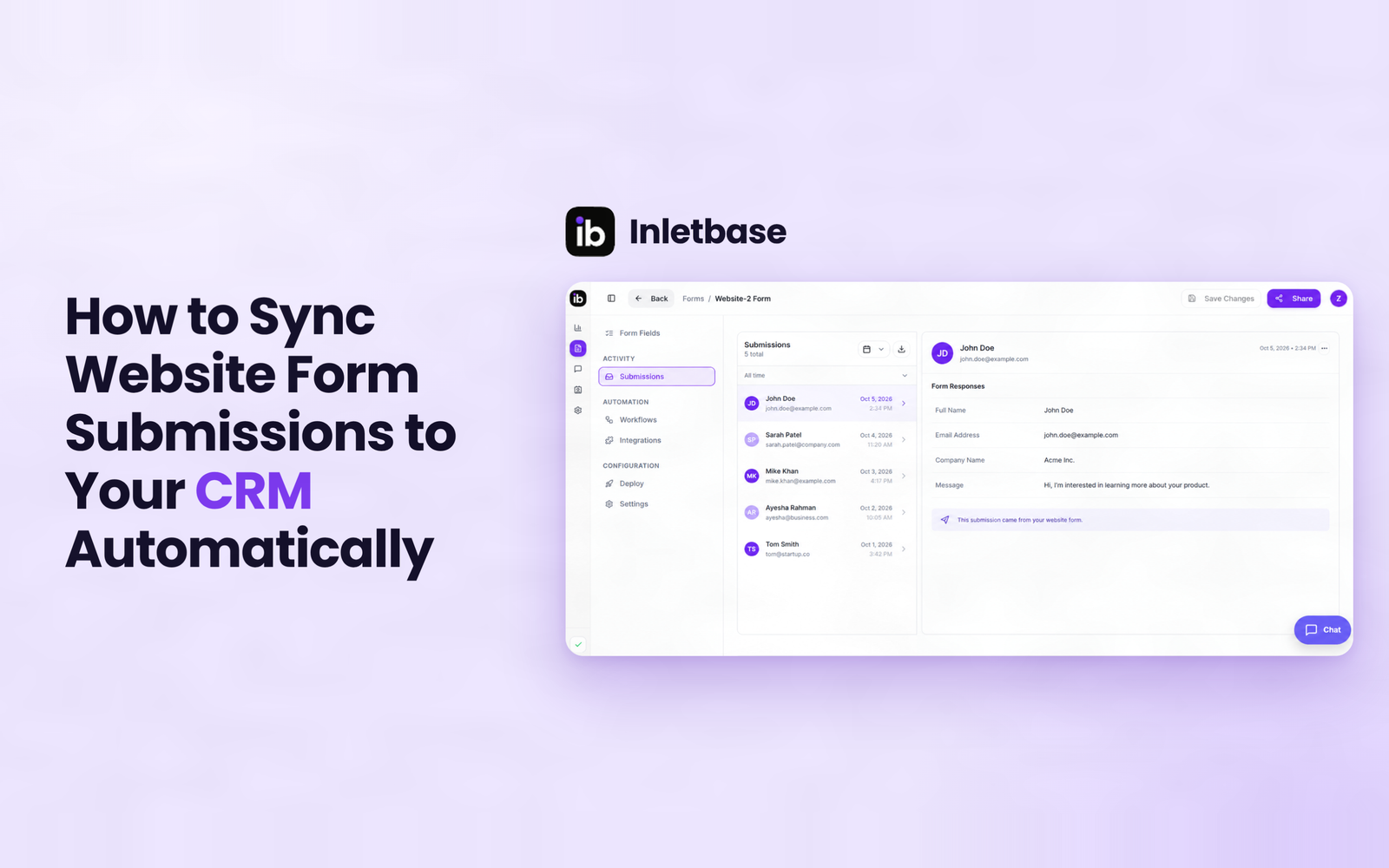
How to Sync Website Form Submissions to Your CRM Automatically
To sync website form submissions to your CRM automatically, send each submission to the CRM the moment it is submitted, using a native integration, a webhook, a connector tool or a CRM-hosted form. Map name, email, message, source and UTM fields, assign an owner on creation, match on email to avoid duplicates, and test every […]
ZaidOct 7, 2026