How to Choose the Right Online Form Builder for Your Website
 Zaid 9 min read
To choose the right online form builder, decide what the form must do, how it should appear on your site, and where its submissions should go. Then check eight things: purpose, appearance, design, free-plan limits, integrations, spam and security, privacy, and price at your real volume. Test two or three tools with the same form before you commit.
Match your situation
| If you need… | Start by looking at… |
|---|---|
| A quick contact or enquiry form | A simple online form builder with an embed code |
| Forms that match a custom-designed site | Your site builder’s own forms, or a form backend |
| A survey or quiz | A survey-style form builder |
| Leads sent straight to a CRM | A tool with a native CRM connection or webhooks |
| Many client sites | A tool with a team dashboard and a clean white-label look |
What is an online form builder?
An online form builder is a tool that lets you create a form, publish it on the web, and collect the responses, usually without writing code. You pick the fields, style the form, and share it as a link or embed it on your site. The tool stores the submissions and can notify you.
You will also see it called an online form maker or a website form builder. They all describe the same thing: a way to get a working form live quickly. The differences between tools lie in what happens after the form is submitted.
What types of form builders are there?
There are five types. Knowing which you need narrows the choice before you compare features.
| Type | What it is | Examples of the category | Best for |
|---|---|---|---|
| Hosted online form builder | You build and host the form in the tool, then share or embed it | Google Forms, Typeform, Jotform | A form you can share fast, with no site changes |
| Website-builder forms | A form block built into your site platform | Webflow, Framer, Wix, Squarespace | Forms that match your site design |
| CMS plugins | A form plugin for your content management system | WordPress form plugins | WordPress sites that want drag-and-drop forms |
| Survey tools | Built for questionnaires and analysis | SurveyMonkey and similar | Research and feedback |
| Form backend | You keep your own form; the service receives and manages the submissions | Inletbase | Custom, coded or builder-made forms that need a reliable place to send data |
Most small sites need either a hosted online form builder or the forms already built into their site platform. If you already design your own form, you probably need a backend, not a builder.
How do you choose the right online form builder?
Check these eight things. For each one, there is a question to ask.
1. What is the form for?
Name the job: a contact form, lead capture, event registration, a survey, or a payment. A tool that is excellent for surveys may be clumsy for a simple contact form, and the reverse. Ask: does it handle my main use case well?
2. How will the form appear on your site?
This affects how it looks and how fast the page loads.
| Method | How it works | Good | Watch for |
|---|---|---|---|
| Embed (script or iframe) | You paste code into your page | Quick, no site changes | Can look different from your site and add load time |
| Link | Visitors go to a page hosted by the tool | Simplest | Takes visitors off your site |
| Native block or plugin | The form is built into your site platform | Matches your design | Tied to that platform |
| Your own form plus a backend | You build the form, a service handles the data | Full design control | Needs some setup |
Whichever you choose, test it on a phone, since many visitors will use one. Ask: does it look right and load quickly on mobile?
3. How much design control do you need?
If the form is on your main site, brand match matters. Check what you can change: fonts, colors, spacing, button style, and whether you can hide the tool’s branding. Ask: will this look like part of my site?
4. What are the free-plan limits?
This is where most surprises happen. See the next section, because it deserves its own look. Ask: what will I hit first?
5. What does it connect to?
A form is only useful if its data reaches the right place. Check for a CRM connection, email notifications, spreadsheets, webhooks and an API, and whether those are on the free plan. Ask: can I send submissions to the tools I already use?
6. How does it handle spam and security?
Open forms attract bots. Look for a way to block spam (a hidden trap field, a CAPTCHA option, or built-in filtering), limits on how fast one source can submit, and secure transfer of data. Ask: what happens when a bot finds my form?
7. Where does the data go, and who owns it?
Check where responses are stored, whether you can export them, and how the tool handles personal data. If you serve visitors in the EU or UK, look for a data processing agreement and clear retention rules. Rules differ by region, so confirm with a legal adviser. This is not legal advice. Ask: can I export everything, and is the vendor clear about how it handles data?
8. What will it cost at my real volume?
Don’t compare list prices alone. Estimate your numbers six months from now, such as how many forms you will have and how many responses a month, then check what each tool would charge for that. Include extras that sit behind paid plans, such as removing branding, file uploads and extra team members. Ask: what will I pay when the form actually works?
What does a free form builder really give you?
A free form builder is useful for getting started, but “free” can mean very different things. Before you sign up, check these limits.
| Limit | Why it matters |
|---|---|
| Responses per month | A cap can cut off submissions just when your form gets traffic |
| Number of forms | A single form may not cover contact, quotes and a newsletter |
| Branding | Many free plans show the tool’s logo on your form |
| File uploads | Often a paid feature |
| Conditional logic | Showing or hiding fields by answer may be paid |
| Integrations and webhooks | CRM and automation links are often limited or paid |
| Data export | Make sure you can take your data with you |
| Team members | Extra people may cost extra |
| Support | Free plans often have limited help |
A free online form builder is a good fit if your needs are small and stable. If your form is how you win customers, the cost of a missed submission is far larger than any monthly fee, so judge a tool on reliability and connections, not just the price.
Online form builder or form backend: which do you need?
A builder gives you a ready-made form and a place to manage responses. A form backend gives you a place to receive and manage submissions from a form you already have, whether it is coded, made in your site builder, or in a plugin.
| If this describes you… | You probably need |
|---|---|
| “I want a form live today, with no code” | A hosted online form builder |
| “My site builder already has form blocks” | Your site’s own forms, plus somewhere to manage the data |
| “I design or code my own forms” | A form backend |
| “I want submissions, replies and my CRM in one place” | A form backend with integrations |
| “I’m running a survey with analysis” | A survey-style builder |
Many teams use both: a builder or site block for the form itself, and a backend for what happens next. For a deeper explanation, read what is a form backend and how it works.
Which online form builder fits which situation?
| Situation | What matters most | What to check first |
|---|---|---|
| Small business contact form | Looks professional, reliable email delivery | Embed method, spam handling, free limits |
| Lead form feeding a CRM | Clean data in the CRM | CRM connection, duplicate handling, webhooks |
| Survey or quiz | Question types, logic, analysis | Question flow, reporting, response caps |
| Event registration | Multi-page forms, confirmations | Logic, file uploads, capacity limits |
| Agency or client sites | Branding, team access, many forms | White-label look, team dashboard, price per site |
| Developer or custom site | Control and an API | API access, webhooks, how it handles your own HTML |
| Internal forms | Simplicity and access control | Sign-in options, export, sharing settings |
How do you choose in six steps?
- Write down what the form must do, including where submissions should go.
- Pick a type from the table above: hosted builder, site form, plugin, survey tool or backend.
- Shortlist two or three tools and check their free-plan limits.
- Build the same form in each, using your real fields and wording.
- Test like a visitor: submit from a phone, check the email, check the data, try the same email twice and send obvious spam.
- Decide on price at your real volume, and check you can export your data.
What mistakes should you avoid?
- Choosing on templates alone. A beautiful template means little if the submissions don’t reach your CRM.
- Ignoring the free-plan cap until the form is live.
- Embedding without testing on mobile.
- Forgetting spam protection, then finding the inbox full of junk.
- Locking in data you can’t export.
- Buying features you won’t use because they look impressive.
Where does Inletbase fit in?
Inletbase is a form backend and AI chatbot platform. If your form is built in your site platform, WordPress, Framer, Webflow or your own code, Inletbase gives those forms one place to send submissions. You see them in a single dashboard, alongside any chatbot conversations, and can send automatic AI replies the moment a form is submitted.
For connections, Inletbase has a native HubSpot sync, webhooks to any app, and workflows with conditions, so only the leads you choose reach your CRM. It also has an API for custom sites, plus a WordPress plugin and a Framer plugin. You can start on the free plan, which includes a form and one AI chatbot, and see the pricing page for current limits. Integrations are available on the Pro plan and above.
Pick it if you already have, or will design, the form on your own site and want submissions, replies and CRM connections in one place. To see how it works with code, read how to build a contact form for Next.js without a backend, and for CRM connections, how to automatically add new leads to your CRM from a form.
Try this first: the 15-minute trial
Pick your real contact form, with your real fields, and build it in two tools. Submit it from your phone, then check four things: did the email arrive, can you see the submission, does it look right on your site, and can you export the data? Whichever tool wins this test is usually the right one.
Conclusion
The right online form builder is the one that fits your form, your site and your workflow, not the one with the longest feature list. Decide what the form must do, check the eight criteria, look hard at free-plan limits, and test two or three tools with the same form before you commit.
Next step: if you already have a form and want somewhere to send its submissions, try Inletbase free, or see the getting started docs.
Frequently asked questions
What is an online form builder?
An online form builder is a tool for creating a web form, publishing it, and collecting responses, usually without code. You choose the fields, style the form, and share it as a link or embed it on your website. The tool stores the submissions and can notify you.
How do I choose the right form builder for my website?
Decide what the form must do, how it should appear on your site, and where submissions should go. Then compare tools on design control, free-plan limits, integrations, spam protection, data privacy and price at your real volume. Build the same form in two or three tools and test it.
Is a free form builder good enough?
It can be, if your needs are small and stable. Check the limits first: monthly responses, number of forms, branding, file uploads, integrations and data export. If the form brings in customers, judge the tool on reliability and connections rather than only on price.
What is the difference between a form builder and a form backend?
A form builder gives you a ready-made form and manages the responses. A form backend receives and manages submissions from a form you already have, built in your site platform, a plugin or your own code. Many sites use a builder or site block for the form and a backend for what happens next.
What limits should I check on a free online form builder?
Check responses per month, number of forms, whether branding is shown, file uploads, conditional logic, integrations and webhooks, data export, team members and support. The first limit you hit is usually the one that forces an upgrade, so estimate your volume before you sign up.
Can I embed an online form on my website?
Yes. Most online form builders give you an embed code or script to paste into your page, and many also offer a plugin or a direct link. Embedded forms can look different from your site, so test them on a phone and check your page’s loading speed.
Are online form builders GDPR compliant?
Some are, and some offer a data processing agreement, but compliance also depends on how you use the tool. Tell visitors how their details are used, collect consent where required, send only what you need, and check the vendor’s terms. Confirm the details with a legal adviser. This is not legal advice.
How do I connect a form builder to my CRM?
Check whether your tool has a native CRM integration. If not, look for webhooks, which can send each submission to your CRM, or a connector such as Zapier or Make. Then map the fields, match on email to avoid duplicates, and test with a real submission.
Related articles
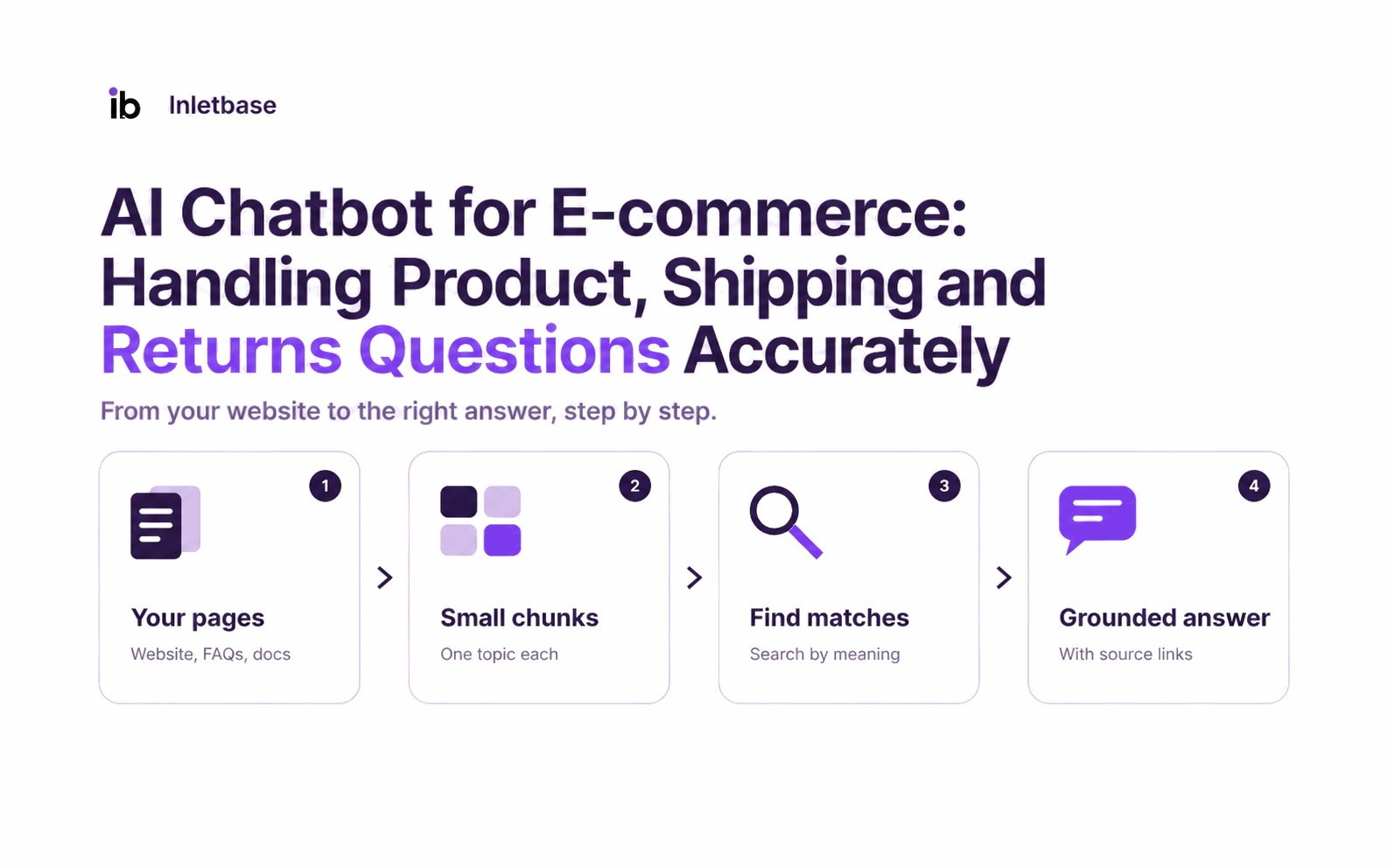
AI Chatbot for E-commerce: Handling Product, Shipping and Returns Questions Accurately
An AI chatbot for e-commerce answers product, shipping and returns questions accurately when it draws only on your own current, complete content and hands anything it can’t verify, such as a specific order or an exception, to a person. Accuracy comes from your policies and your testing, not from the AI model alone. The numbers […]
ZaidNov 12, 2026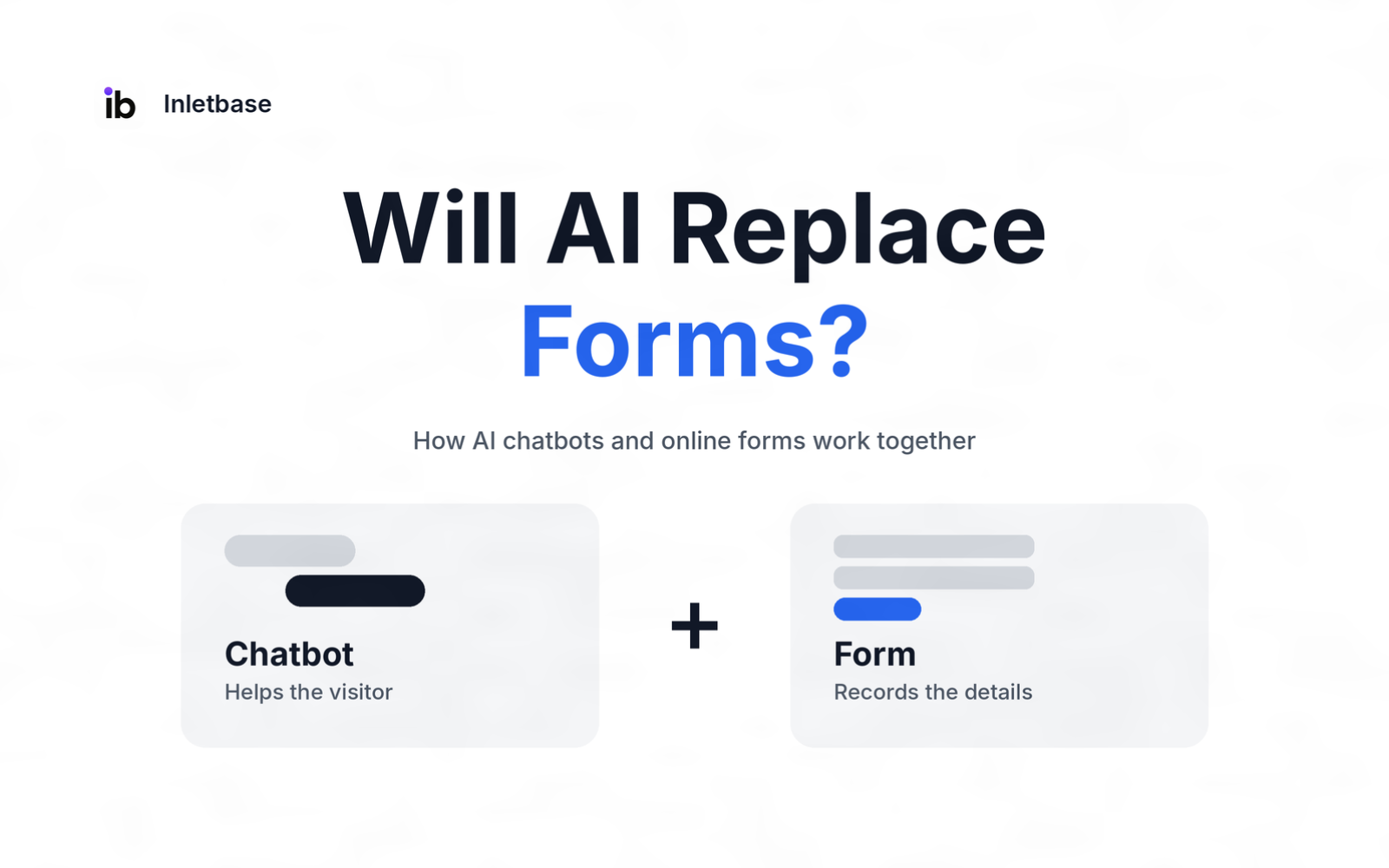
Will AI Replace Forms? How AI Chatbots and Online Forms Work Together
No. AI is unlikely to replace online forms, because the two do different jobs. An AI chatbot is best at answering questions and guiding a visitor, while a form is best at collecting exact, checkable details you can store and act on. Most websites do best using a chatbot to help people and a form […]
ZaidNov 7, 2026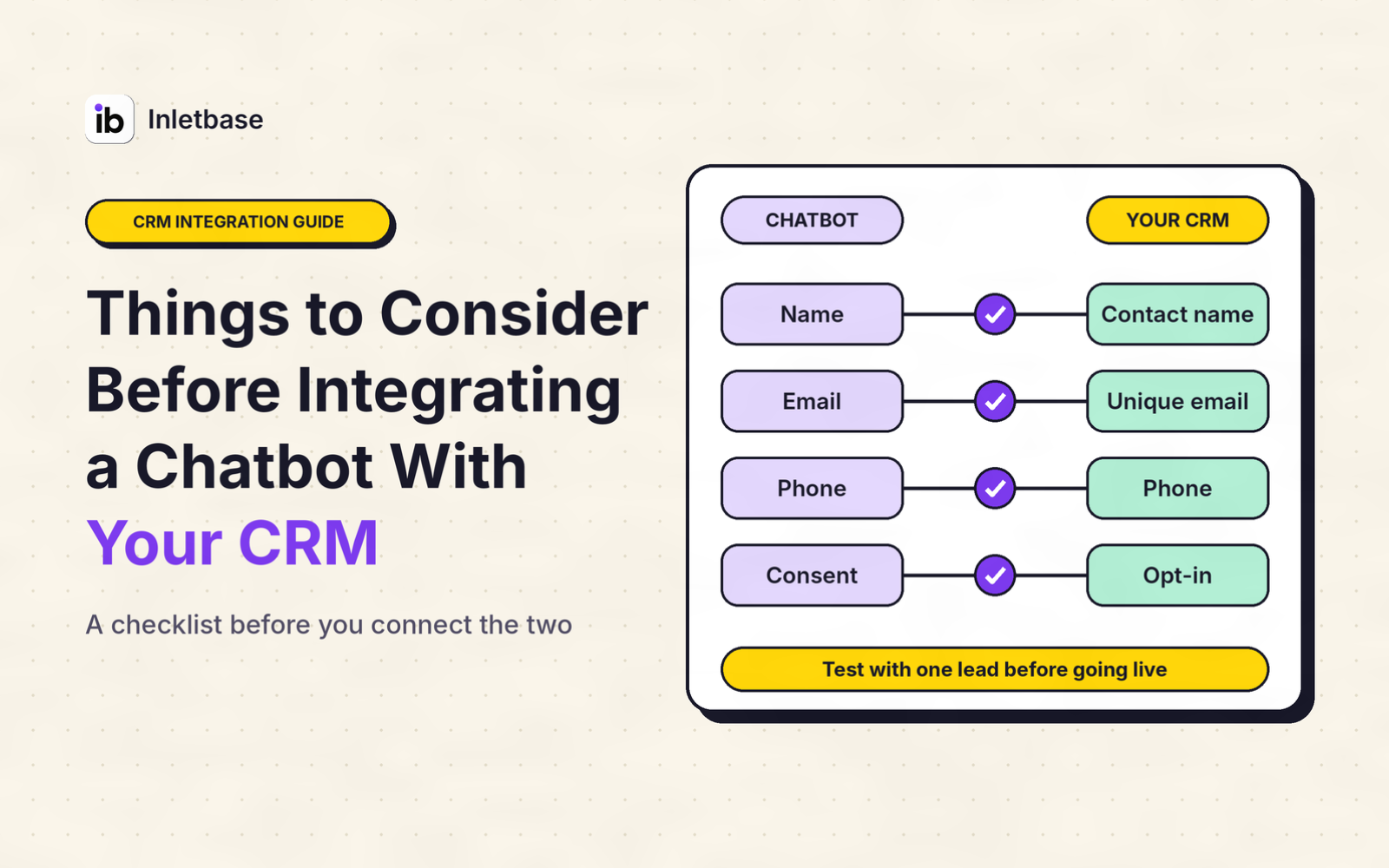
Things to Consider Before Integrating a Chatbot With Your CRM
Before you integrate a chatbot with your CRM, decide what job it must do, clean your CRM data, choose whether data flows one way or both, pick the connection route, limit what the chatbot can see and change, handle privacy and consent, set rules for leads and duplicates, design the handoff to a person, test […]
ZaidOct 29, 2026Latest articles
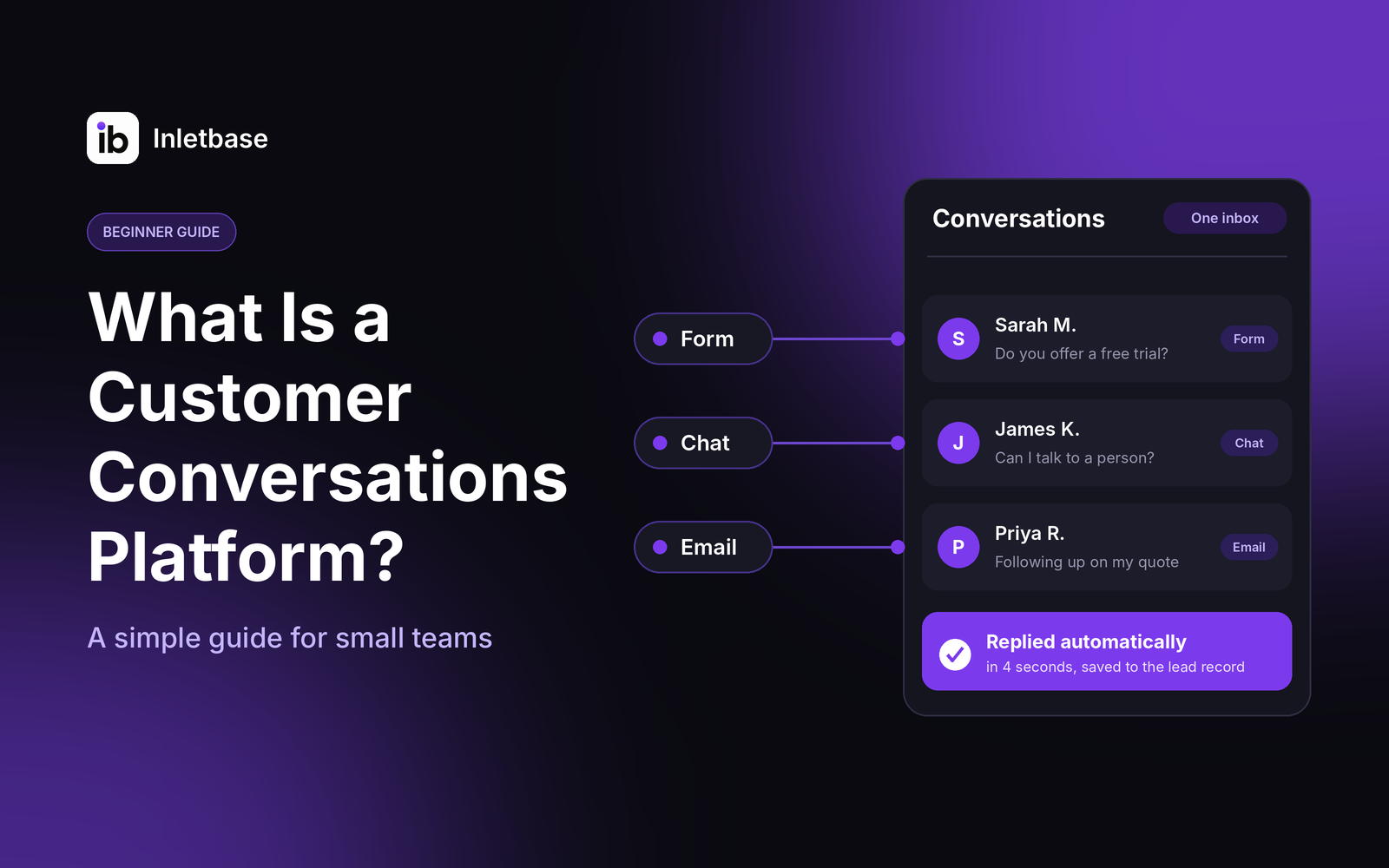
What Is a Customer Conversations Platform? A Simple Guide for Small Teams
A customer conversations platform is software that gathers every conversation with your customers, from website chat and forms to email and messages, into one place. Your team sees the full history, replies faster, and follows up without losing anything. For a small team, the right one is simple, affordable and connected to your CRM. Who […]
ZaidOct 28, 2026
How Do I Automatically Add New Leads to My CRM When Someone Fills Out a Form?
To add new leads to your CRM automatically, connect your form to the CRM so each submission creates a contact the moment it is sent. Use your form tool’s built-in CRM integration if it has one, a webhook if it doesn’t, or a connector tool like Zapier as a last resort. Map the fields, match […]
ZaidOct 24, 2026