How to Send Form Submissions to Slack, Google Sheets and Your CRM
 Zaid 14 min read
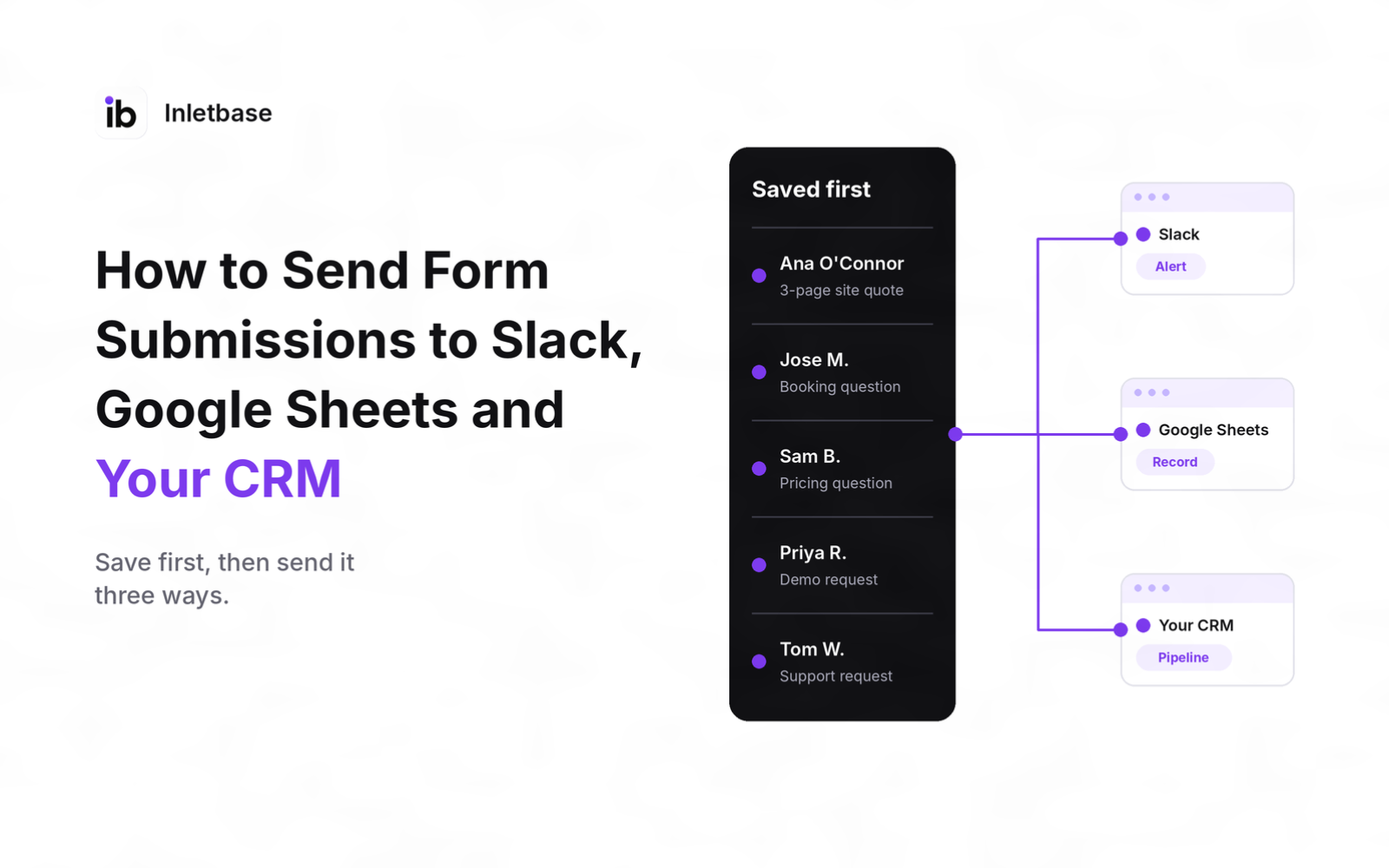
Short route: Save every submission in one place first, then send it three ways: a Slack message so your team sees it, a Google Sheets row so you have a record, and a CRM contact so someone follows up. Use your form tool’s built-in integration where one exists, a webhook for the rest, and match on email and a submission ID so nothing is duplicated.
One submission, three jobs
| Destination | Its job | Why it matters |
|---|---|---|
| Slack | Alert: tell people something arrived | The fastest way to get a human looking. Slack is a notification, not a database |
| Google Sheets | Record: keep every submission, searchable and countable | Lets you audit, filter and report, and check nothing was missed |
| CRM | Pipeline: give the lead an owner and a next step | Where follow-up and deals are managed |
Which destination should do which job?
Give each tool one job, and treat one of them as the source of truth. Without that, the same lead lives in three places and nobody knows which is right.
- Slack is the alert. It scrolls away. Never make it the only record.
- Sheets is the record. It is where you check, filter and count.
- The CRM is the pipeline. It owns the contact, the owner and the next step.
And before all three, save every submission in the system that receives the form. If Slack, Sheets or the CRM fails, you still have the original.
What are the four ways to do it?
| Method | How it works | Best when | Cost and effort | Watch for |
|---|---|---|---|---|
| Native integrations | Your form tool connects straight to the CRM (and sometimes Slack or Sheets) | The tool lists what you need | Minutes | Fixed options; plan limits |
| Connector tool (Zapier, Make, n8n) | One webhook trigger fans out to Slack, Sheets and the CRM | No code, many apps, non-technical team | 20 to 40 minutes; tasks or runs are often metered | Another bill and failure point |
| Webhook plus a small relay (Apps Script) | The form sends a webhook to a free script that writes the row and posts to Slack | You want Sheets and Slack without a paid connector | About an hour | Apps Script quotas and its redirect behavior |
| Your own code | Your server calls each service’s API | You are a developer and need full control | A day or more | You maintain it |
Check native first
Before you build anything, look at your form tool’s integration list. Some forms connect straight to Slack, Google Sheets or a CRM from their own settings. If those cover what you need, use them: it is less to maintain and nothing extra to pay for. Build a relay or a connector only for what the form tool can’t do on its own.
Two questions settle it:
- Does it connect directly to all three? If yes, stop here.
- Does it connect to some? Use native for those, and a webhook for the rest.
For example, a form tool might have a built-in CRM connection and a webhook, but no Slack or Sheets connection. Then you use the native CRM sync and send the webhook to a relay or connector for the other two.
A practical combination for a small team: native CRM sync for the pipeline, plus a webhook to a relay (free) or a connector for Slack and Sheets. That is what this guide builds.
What do you need before you start?
- A form on your website that sends submissions somewhere that can forward them (a form backend or your form tool’s webhook).
- A CRM account where you can create contacts, and a field list (at minimum name and email).
- A Google account for the sheet, and a Slack workspace where you can add an app.
- A decision on what goes to Slack. Send a short summary, not every field. Slack is not the place for sensitive details.
Step 1: How do you save every submission first?
Send the form to one place that stores each submission before anything is forwarded. A form backend does this and gives you a dashboard of every submission. In Inletbase, forms on any site, including WordPress, Framer, Webflow and custom code, send submissions to Inletbase, where each one is saved. See what is a form backend for the idea.
Why first: if a downstream tool is down or misconfigured, you can replay or check against the original list.
Step 2: How do you send submissions to your CRM?
Use a native integration if your form tool has one for your CRM. In Inletbase, open your form and click the Integrations tab, then:
- Connect HubSpot: click the HubSpot card and sign in. Once connected, it is available on all your forms.
- Add a Create Contact action.
- Match your fields: pick a HubSpot field on one side and the form field that fills it on the other. The email pair is required, because HubSpot uses email to find the right person.
- Turn on update existing, so a repeat submitter updates their contact instead of creating a duplicate.
- Click Save.
For another CRM, send the webhook to its intake or API endpoint, or fan out through a connector (Step 4). See the Integrations docs, and for the full CRM walkthrough, how to automatically add new leads to your CRM from a form.
Integrations are available on the Pro plan and above; the free plan shows the tab as locked. See the pricing page.
Step 3: How do you send submissions to Google Sheets and Slack for free?
Use a small relay: a Google Apps Script web app that receives the webhook, writes a row to a sheet, and posts a short message to Slack. It costs nothing and no connector tool is needed.
What the script does
- Checks a secret token in the URL, so a stranger who finds the link can’t write to your sheet.
- Accepts any JSON and flattens it into columns, so it works with whatever the webhook sends.
- Dedupes using the submission ID (or a hash of the content if there isn’t one).
- Writes the row first, then posts to Slack, so a Slack outage never loses a submission.
- Stores values as plain text, so a malicious value such as
=HYPERLINK(...)is never run as a formula. - Escapes
&,<and>and shortens long text, so a message can’t ping@channelor flood the channel. - Can filter what reaches Slack with one optional setting, while still saving every row.
Set it up
- Create a Slack incoming webhook. In Slack, create an app (from scratch), turn on Incoming Webhooks, add a webhook to your workspace, and choose the channel. Copy the URL. Slack’s incoming webhooks accept a JSON payload with a
textfield, and the channel is fixed by the app, so create one webhook per channel. - Create the sheet. Make a Google Sheet. Open Extensions → Apps Script.
- Paste the code
- Add script properties. In Project Settings → Script properties, add
SHARED_SECRET(a long random string) andSLACK_WEBHOOK_URL(the Slack URL). - Deploy. Click Deploy → New deployment, choose Web app, set Execute as: Me and Who has access: Anyone, then deploy and authorize.
- Copy the web app URL (it ends in
/exec) and add?token=followed by your secret. - Paste that URL into your form’s webhook. In Inletbase, open the form’s Integrations tab, add a webhook, paste the URL and switch it Active. Each submission sends the form, the fields the person filled in and when it happened. You can add more than one webhook, so the same submission can reach several tools.
- Send a test submission and check the sheet and the Slack channel.
- If you edit the code later, use Deploy → Manage deployments → Edit → New version, so the same URL runs the new code.
Limits to know about: Apps Script allows 20,000 URL Fetch calls a day on a consumer account and 100,000 on Workspace, and each run can last up to 6 minutes. The relay makes one call per submission, so most small sites are far below that, but quotas can change without notice.
One quirk to test: an Apps Script web app answers a POST with a 302 redirect. The script still runs on the first request, but a sender that doesn’t follow redirects may report the delivery as failed and try again. The dedupe step means a retry won’t create a second row or message. Send a test and check that your form tool shows the delivery as successful, and that you get one row, not two.
Step 4: How do you do it with a connector tool instead?
If you’d rather not run any code, use Zapier, Make or n8n.
- Create a webhook trigger in the tool and copy its URL.
- Paste that URL as a webhook in your form tool.
- Send a test submission so the tool learns the fields.
- Add three actions: post to Slack, add a row to Google Sheets, and create or update a contact in your CRM.
- Map the fields and test again.
This is the easiest route for a team without a developer, and it handles many apps. The trade-off is another bill (many plans meter tasks or runs) and another place for a failure to hide. Check each tool’s current plan limits.
What will the sheet look like?
The relay builds the header row for you from the first submission, and adds a column whenever a new field appears. For a typical contact form with fields nested under fields, you will see something like this:
| Column | What it holds |
|---|---|
received_at | When the relay received it (ISO time) |
submission_id | The ID used to ignore repeats |
form | The form name, if the payload includes it |
fields.name | The name entered |
fields.email | The email entered |
fields.message | The message |
timestamp | The time the form tool recorded, if sent |
The exact column names depend on your form tool’s payload, so send a test and look at the first row. Don’t rename the headers in the Submissions tab. The relay matches columns by their header text, so a renamed header would make it add a fresh column the next time a submission arrives. If you want friendlier names such as “Name” and “Email”, build a second tab that pulls from the Submissions tab with formulas, and share that one.
Which submissions should reach Slack?
Start with every submission, then narrow it as volume grows, so the channel stays quiet enough to read. Your sheet and CRM should still get everything.
In the relay: set SLACK_FILTER in the script properties. fields.budget=high posts only when that field equals “high”, and fields.message~quote posts only when the message contains “quote” (neither is case-sensitive). Rows are always saved to the sheet.
In a workflow: in Inletbase, use workflows to put a condition in front of the HubSpot and webhook steps, so only the submissions you choose are forwarded.
Different channels: a Slack webhook is tied to one channel, so create one webhook per channel and use a separate relay or connector step for each.
What about file uploads?
If your form accepts files, send links to Slack and the sheet, not the files themselves. Keep the files where your form tool stores them, and keep access limited to the people who need them. Don’t paste download links for sensitive documents into a busy channel.
What should you send to Slack?
A short summary and a way back to the record. Slack messages are visible to everyone in the channel and live in search for a long time.
| Include | Leave out |
|---|---|
| Name, and a short reason or message summary | Full free-text messages if they can be long or sensitive |
| Email (if your team replies from Slack) | Phone numbers, addresses, health, payment or other sensitive details |
| Form name or lead source | Anything the channel shouldn’t see |
| A link or row number back to the record | Secrets, API keys, internal notes |
If you have sensitive fields, capture them in the record and leave them out of the Slack message.
How do you stop duplicates and lost submissions?
Use an ID, update instead of insert, and keep a record.
- Submission ID: the relay uses it to ignore a repeated delivery. If your payload has no ID, it falls back to a hash of the content.
- Match on email in the CRM and turn on update existing.
- Write the record before the alert, so a failed Slack message never costs you a submission.
- Plan for one destination to fail. Check the dashboard, the sheet and the CRM against each other (see the weekly check below).
A worked example
This is a fictional business, “Harbor & Pine Studio”, used only to illustrate.
A visitor submits the contact form. The webhook sends
{"form": "Contact", "submission_id": "sub_000123", "fields": {"name": "Ana O'Connor", "email": "ana@example.com", "message": "Quote for a 3-page site"}, "timestamp": "2026-11-25T10:00:00Z"}The exact payload shape differs by tool, and the relay flattens whatever arrives.
| Destination | What happens |
|---|---|
| Dashboard | The submission is saved |
| Google Sheet | A row is added with columns such as received_at, submission_id, form, fields.name, fields.email, fields.message |
| Slack | “New form submission”, the name, email and message, and “Saved to the sheet, row 2” |
| CRM | Ana O’Connor is created, or updated if she already exists, matched on email |
If the webhook fires twice, the second delivery is recognised by sub_000123 and ignored.
Break it on purpose
Test the failures, not just the happy path.
- Submit a normal entry and confirm the dashboard, sheet, Slack and CRM all show it.
- Submit the same entry twice, or resend the webhook, and confirm there is one row and one CRM contact.
- Use a name with an apostrophe or accent, like O’Connor or José.
- Enter
=1+1as a name and confirm the sheet shows the text, not2. - Enter
<!channel>in the message and confirm Slack shows it as text and pings nobody. - Use the wrong token and confirm nothing is written.
- Pause the Slack webhook (or use a bad URL) and confirm the row is still saved.
- Add a new form field and confirm a new column appears and older rows stay intact.
- Submit from a phone.
What commonly goes wrong?
| Symptom | Likely cause | Fix |
|---|---|---|
| Nothing arrives in the sheet | Webhook off, wrong URL, or the token is missing | Check the Active switch, the /exec URL and ?token= |
| “Unauthorized” in the response | Token doesn’t match the secret | Make them identical |
| Two rows for one submission | The sender retried after seeing the 302 and no ID is in the payload | Make sure there is an ID, or accept the hash fallback and test |
| Code changes have no effect | A new version wasn’t deployed | Manage deployments, Edit, New version |
| Row saved but no Slack message | Slack URL missing or webhook disabled | Check the property and the Slack app |
| Slack message shows odd characters | Special characters in text | The relay escapes &, < and >; check the field |
| CRM contact created without an email | The email pair isn’t mapped | Map the email field and test again |
| Duplicate CRM contacts | Update existing is off | Turn it on and match on email |
| Script stops after many submissions | Daily quota reached | Check quotas, or move to a connector or your own code |
How do you check it keeps working?
Once a week, compare four counts for the same period: submissions in your dashboard, rows in the sheet, contacts created in the CRM, and Slack messages. They should match. If one is lower, you have a leak, and the dashboard (the original) shows which submissions to replay.
Where does Inletbase fit in?
Inletbase is a form backend and AI chatbot platform, so it covers the first and most important step: every submission is saved in one dashboard, whichever site or builder the form came from, next to your chatbot conversations.
From there, the forwarding is built in or one paste away:
- CRM: a native HubSpot sync creates a contact for each submission, matches fields you choose and can update an existing contact instead of creating a duplicate.
- Slack, Google Sheets and any other app: webhooks send each submission to a URL you choose, with an Active switch and support for more than one webhook, which is how the relay in this guide connects.
- Conditions: workflows let you add conditions, so only the submissions you choose are forwarded.
- Instant replies: you can send an automatic AI reply the moment a form is submitted.
The free plan includes a form and one AI chatbot, integrations are available on the Pro plan and above, and the pricing page has current limits. For setup, see the Integrations docs and workflows.
Pick it if you want every submission saved in one place and sent to your CRM, a spreadsheet and your team’s channel without paying for a connector. For a developer route, see how to build a contact form for a Next.js website without a backend.
What mistakes should you avoid?
- Making Slack the only record.
- Sending every field to Slack, including sensitive ones.
- Writing to three tools from the form, so one failure loses data. Save first, then fan out.
- Leaving the relay URL unprotected.
- Skipping the duplicate test.
- Never reconciling, so a leak runs for months.
- Using three tools when a native integration covers it.
Conclusion
Treat every form submission as one event with three jobs: an alert in Slack, a record in Google Sheets and a contact in your CRM. Save it first, fan it out second, dedupe with an ID and email, and test the failures on purpose. Then check the counts match once a week.
Next step: try Inletbase free to save every submission in one dashboard, or open the Integrations docs to connect your CRM and webhooks.
Frequently asked questions
How do I send form submissions to Slack, Google Sheets and a CRM at the same time?
Save each submission in one place first, then forward it three ways: a Slack message for the alert, a Google Sheets row for the record, and a CRM contact for follow-up. Use your form tool’s native CRM integration, and a webhook to a small relay or connector for Slack and Sheets.
Do I need Zapier to send form submissions to Slack and Google Sheets?
No. A webhook can send each submission to a free Google Apps Script web app that writes a row to your sheet and posts to a Slack incoming webhook. Zapier, Make or n8n are easier if you don’t want to run any code, but they add another tool and often a metered bill.
How do I send a website form to Google Sheets automatically?
Have your form send a webhook to a Google Apps Script web app bound to your sheet, or use a connector tool. The script reads the submitted data, adds a row, and can add new columns when new fields appear. Protect the URL with a secret token and test with a sample submission.
How do I send form submissions to a Slack channel?
Create a Slack app, turn on incoming webhooks, add a webhook for your channel, and send it a JSON payload with a text field. Because the webhook is tied to one channel, create one per channel. Send a short summary, not sensitive fields, and escape special characters.
Which should be the source of truth: Slack, Google Sheets or my CRM?
Treat the system that first receives the form as the original record, the CRM as the home of the contact and follow-up, Sheets as a searchable record for reporting, and Slack only as an alert. Slack messages scroll away, so never rely on them as the only copy.
How do I avoid duplicate rows and contacts?
Send a unique submission ID and ignore repeats, match on email in the CRM and update the existing contact instead of creating a new one, and write the record before the alert. Then test by submitting the same entry twice and confirming you get one row and one contact.
What data should I send to Slack?
Send a short summary: the name, a brief message or reason, the form name and a link or row number back to the record. Leave out sensitive details such as health, payment or full addresses, and never include secrets. Slack messages are visible to the whole channel.
Can I send only some form submissions to Slack?
Yes. Put a condition in front of the Slack step, such as only when a budget field is high or a message contains a keyword, while still saving every submission to your sheet and CRM. In a connector tool, add a filter step. In the relay in this guide, set the SLACK_FILTER property.
Why didn't my form submission appear in Google Sheets or Slack?
Common causes are a webhook that is switched off, a wrong or incomplete URL, a missing or mismatched token, a script change that wasn’t deployed as a new version, or a disabled Slack webhook. Check each in turn, then compare your dashboard with the sheet to find what was missed.
Related articles
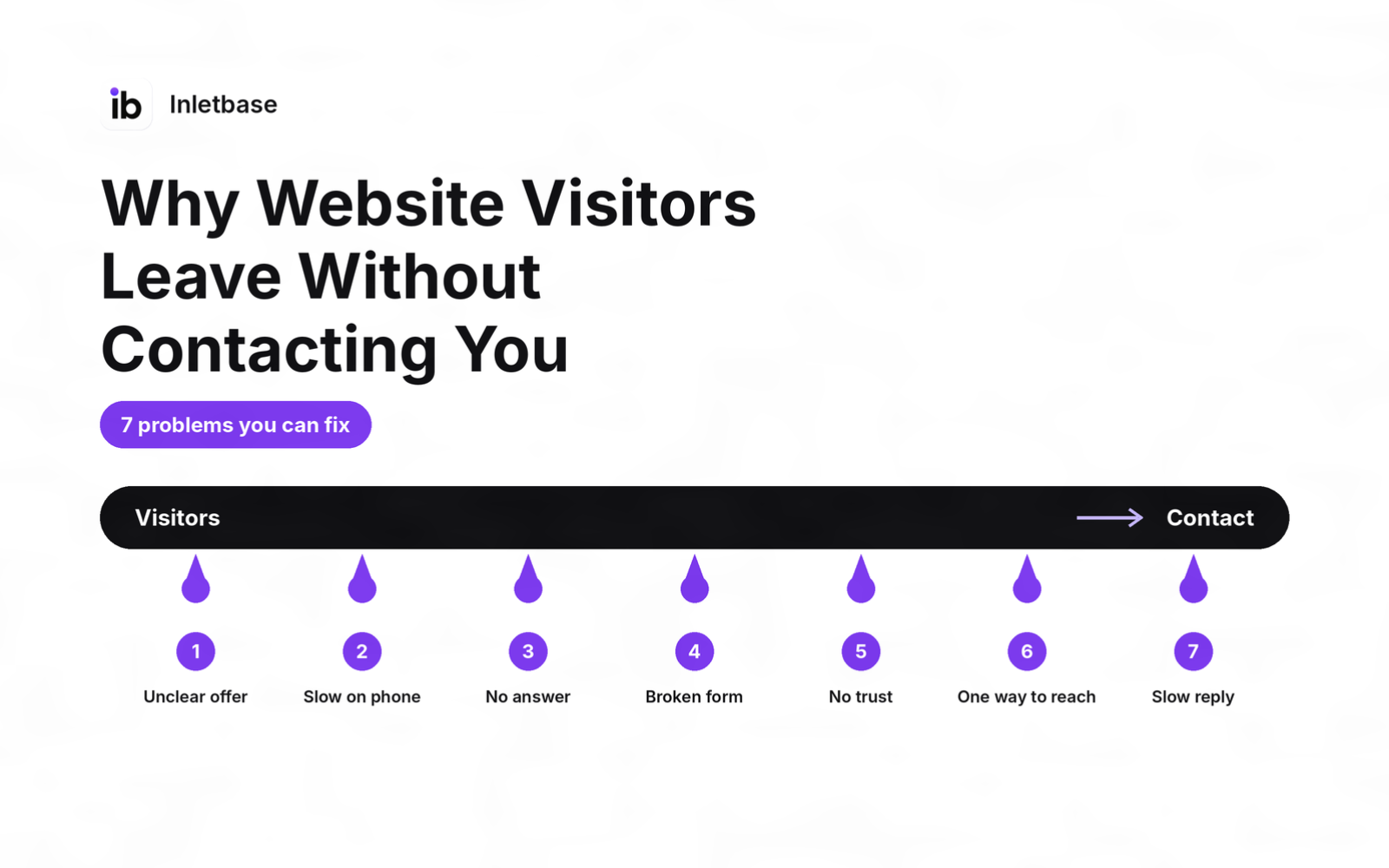
Why Website Visitors Leave Without Contacting You: 7 Problems You Can Fix
Most visitors leave without contacting you because of a few fixable problems: they can’t tell what you do or what to do next, the site is slow on a phone, a question goes unanswered, the form is long or quietly broken, they don’t trust you yet, there’s only one way to reach you, or nothing […]
ZaidNov 19, 2026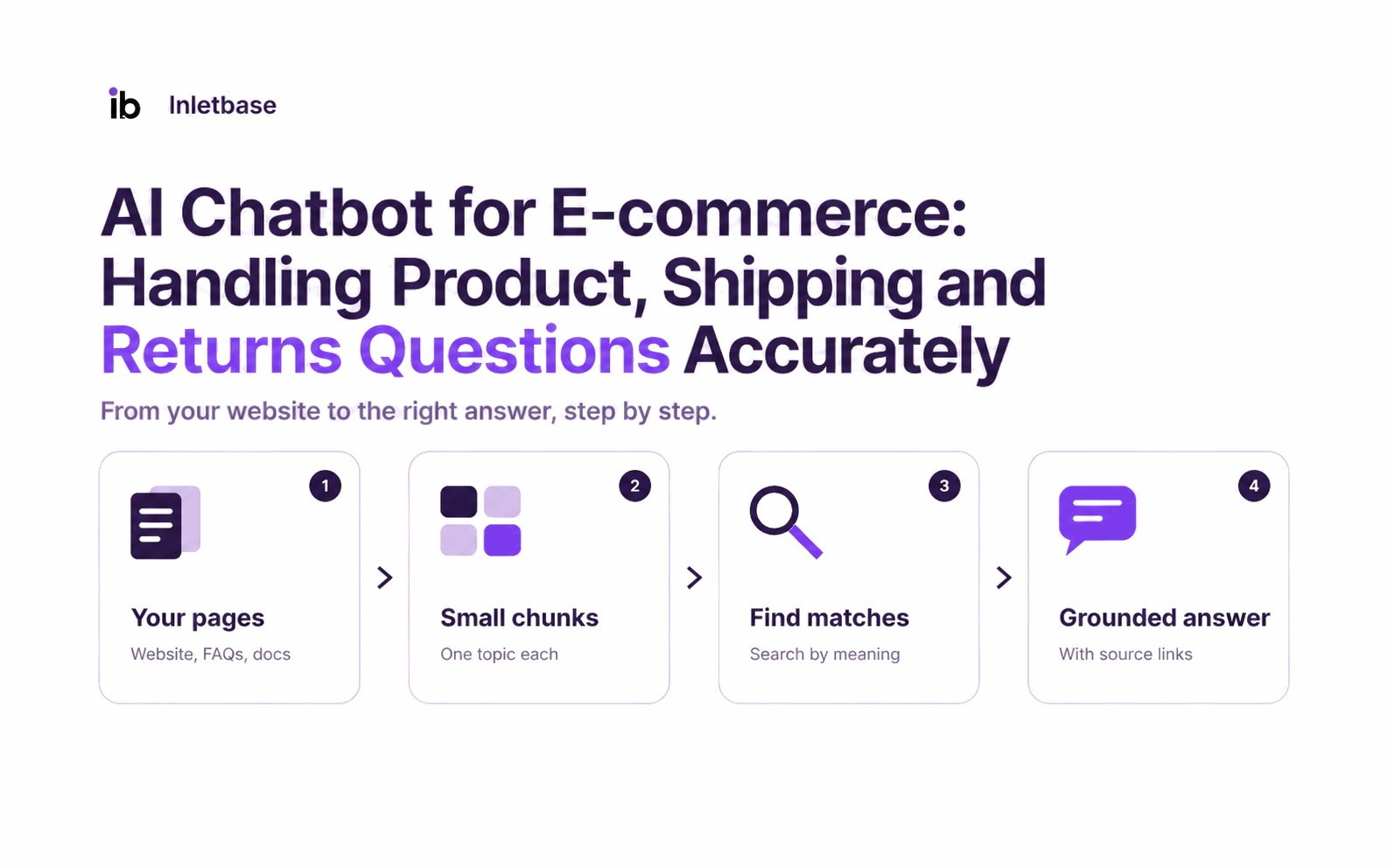
AI Chatbot for Ecommerce: What It Does, How to Choose One and How to Keep Answers Accurate
An AI chatbot for ecommerce is software that answers shoppers’ questions about products, shipping and returns in your store’s chat widget, using your own content. It handles repeat questions at any hour and passes anything that needs a decision, such as a damaged-item refund, to a person. The numbers behind this topic What the data […]
ZaidNov 12, 2026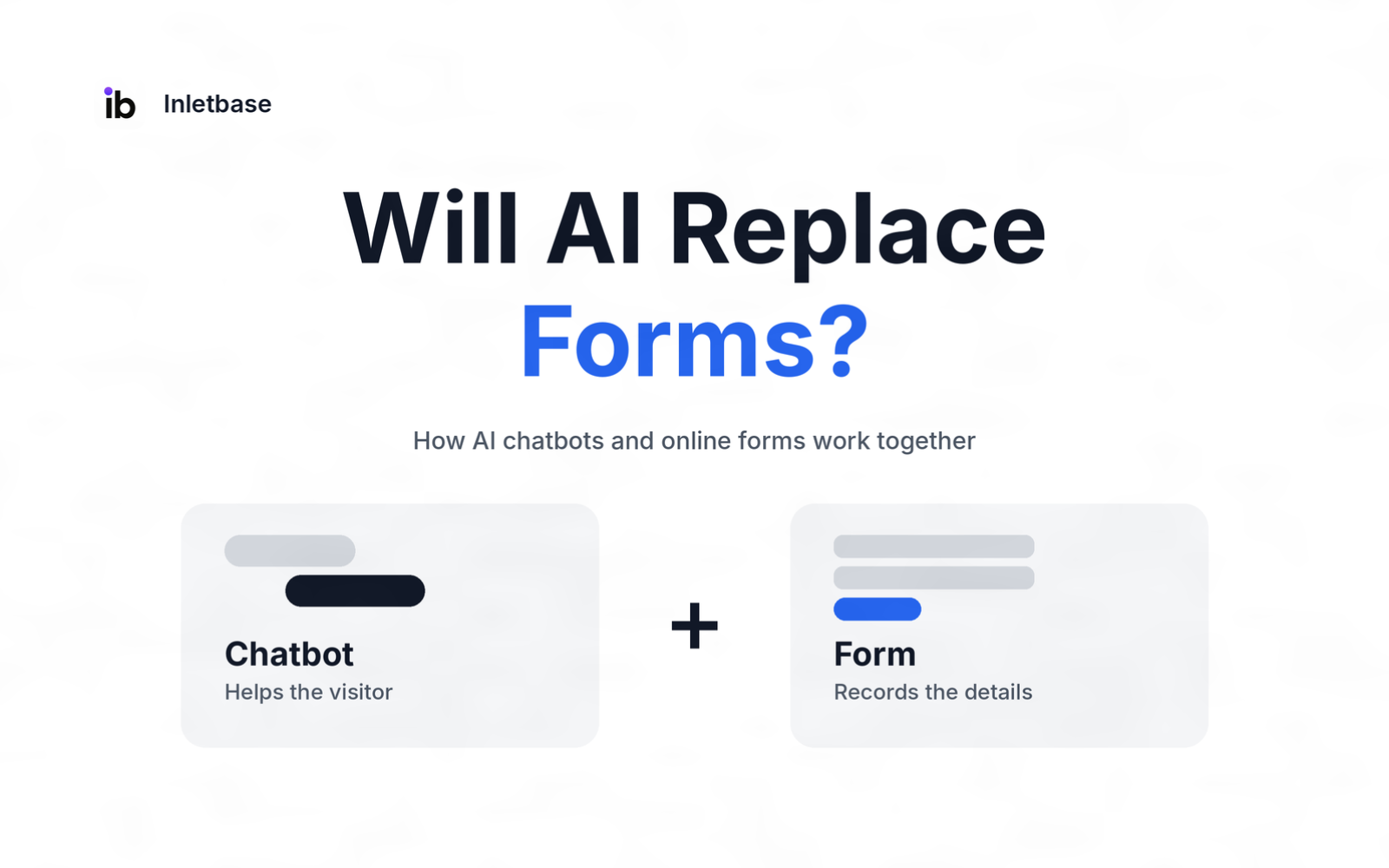
Will AI Replace Forms? How AI Chatbots and Online Forms Work Together
No. AI is unlikely to replace online forms, because the two do different jobs. An AI chatbot is best at answering questions and guiding a visitor, while a form is best at collecting exact, checkable details you can store and act on. Most websites do best using a chatbot to help people and a form […]
ZaidNov 7, 2026Latest articles
How to Choose the Right Online Form Builder for Your Website
To choose the right online form builder, decide what the form must do, how it should appear on your site, and where its submissions should go. Then check eight things: purpose, appearance, design, free-plan limits, integrations, spam and security, privacy, and price at your real volume. Test two or three tools with the same form […]
ZaidNov 2, 2026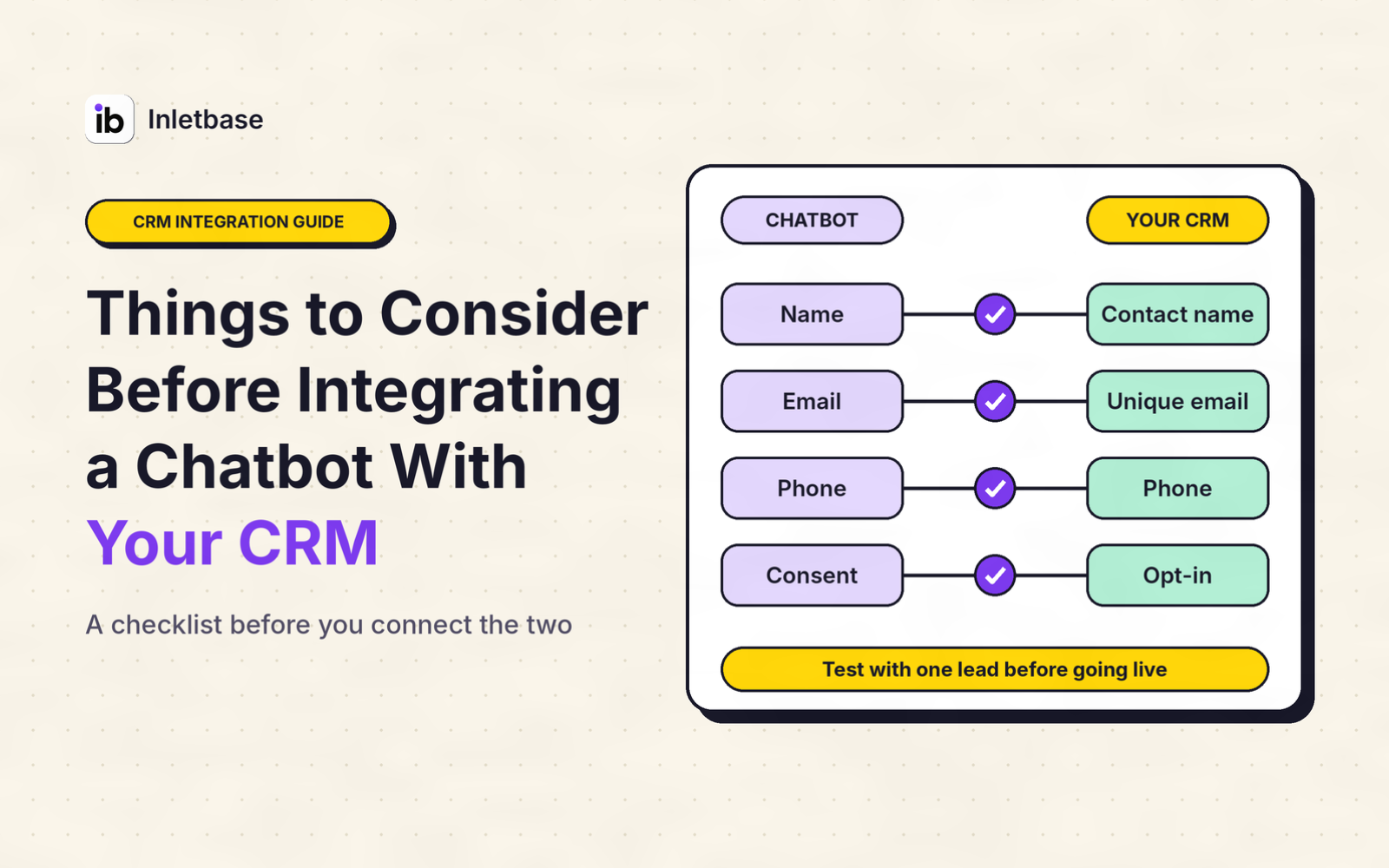
Things to Consider Before Integrating a Chatbot With Your CRM
Before you integrate a chatbot with your CRM, decide what job it must do, clean your CRM data, choose whether data flows one way or both, pick the connection route, limit what the chatbot can see and change, handle privacy and consent, set rules for leads and duplicates, design the handoff to a person, test […]
ZaidOct 29, 2026